For: CRMDAY One users with the Insurance profile.
Read policy status in the application context
| Situation | What it means for your work |
|---|---|
| Quote approved | The client’s decision is recorded; alone it does not confirm issuance or coverage. |
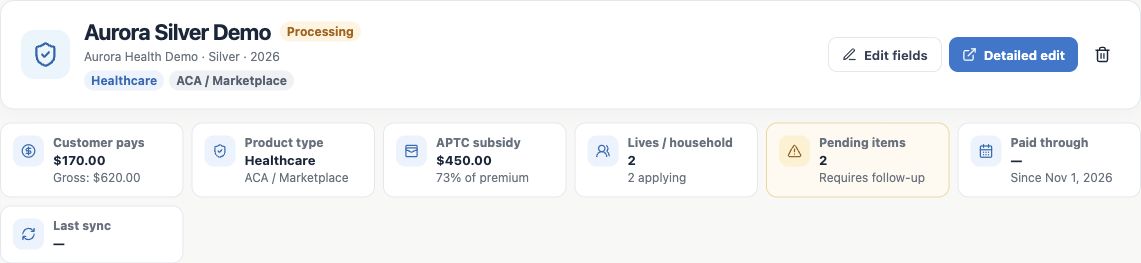
| Processing | The record still needs follow-up. The ACA wizard creates policies in this state. |
| Active policy | Recorded state for coverage confirmed through your agency’s process. Also check effective date and source information. |
| Inactive policy | A record without active coverage in the CRM. Check reason, dates and documents before advising the client. |
Source status may contain more detail than the CRM summary. A won Deal, an attached card or an approval note does not replace policy confirmation. The example remains Processing.
Check operational pending items
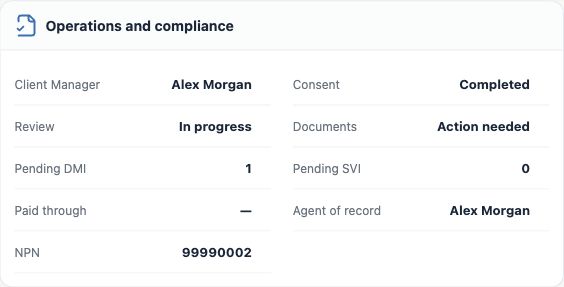
- Open Operations and compliance and check the Client Manager responsible for follow-up.
- Review Consent, Review and Documents separately. Completed consent does not mean all documents were accepted.
- Check outstanding DMI and SVI counts where present. They flag application follow-up; confirm the missing items and deadlines at the source. Do not infer the required document from the acronym alone.
- Record a concrete action for each item: document to check, responsible person and follow-up date.
- After obtaining valid confirmation, update relevant editable fields and verify the result. Source counters may depend on updates/imports; attaching a file or completing a Task does not automatically clear them.
Track payment and dates without charging through the record
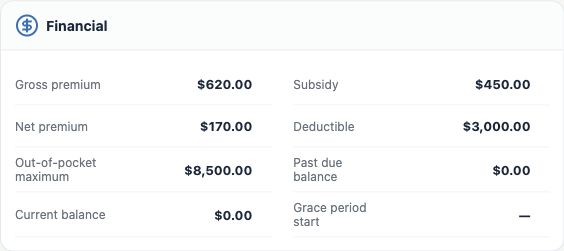
In Financial, check recorded past-due balance, current balance and grace-period start where present. Paid through shows the recorded paid-through date. A blank field requires checking; it does not establish that the client is up to date.
- Confirm details with your agency’s source before reporting a deadline, payment or coverage status.
- If something is outstanding, agree the next action with the client and record the follow-up date.
- Update the CRM only with confirmed facts. Entering an amount or date does not charge the client, make a payment or confirm the carrier received one.
- Recheck effective date, status and source information after relevant updates.
Update status after confirmation
- Check the record and evidence for the change. Use Edit fields on Status or Detailed edit, as available.
- Select the status matching the confirmed situation and save. Check dates that actually changed, without filling unknown values.
- Record the confirmation and remaining actions in Notes. Attach appropriate supporting evidence.
- Reopen the policy to verify the change. For imported records, follow the next source update and any local adjustments.
Verify follow-up is organized
The status is supported by confirmed information, each pending item has an owner and deadline, and a next action exists for the client. If source and CRM differ, check last sync and request support before changing many fields or creating another policy. Continue with Organize documents and plan ID cards.
Keep learning
- The client approved the quote: prepare the policy
- Create the policy with the wizard
- Review and update the policy record
- Organize documents and plan ID cards
- Organize after-sales service and the next interaction
- ACA quotes: save and share the simulation
- Manage opportunities and next steps
Updated October 24, 2026.