Who this is for: Agency administrator or person responsible for templates
Before using a template with clients, check its text and the experience they will have when opening the document. A short review helps prevent the wrong language or identity appearing on a form.
Step by step
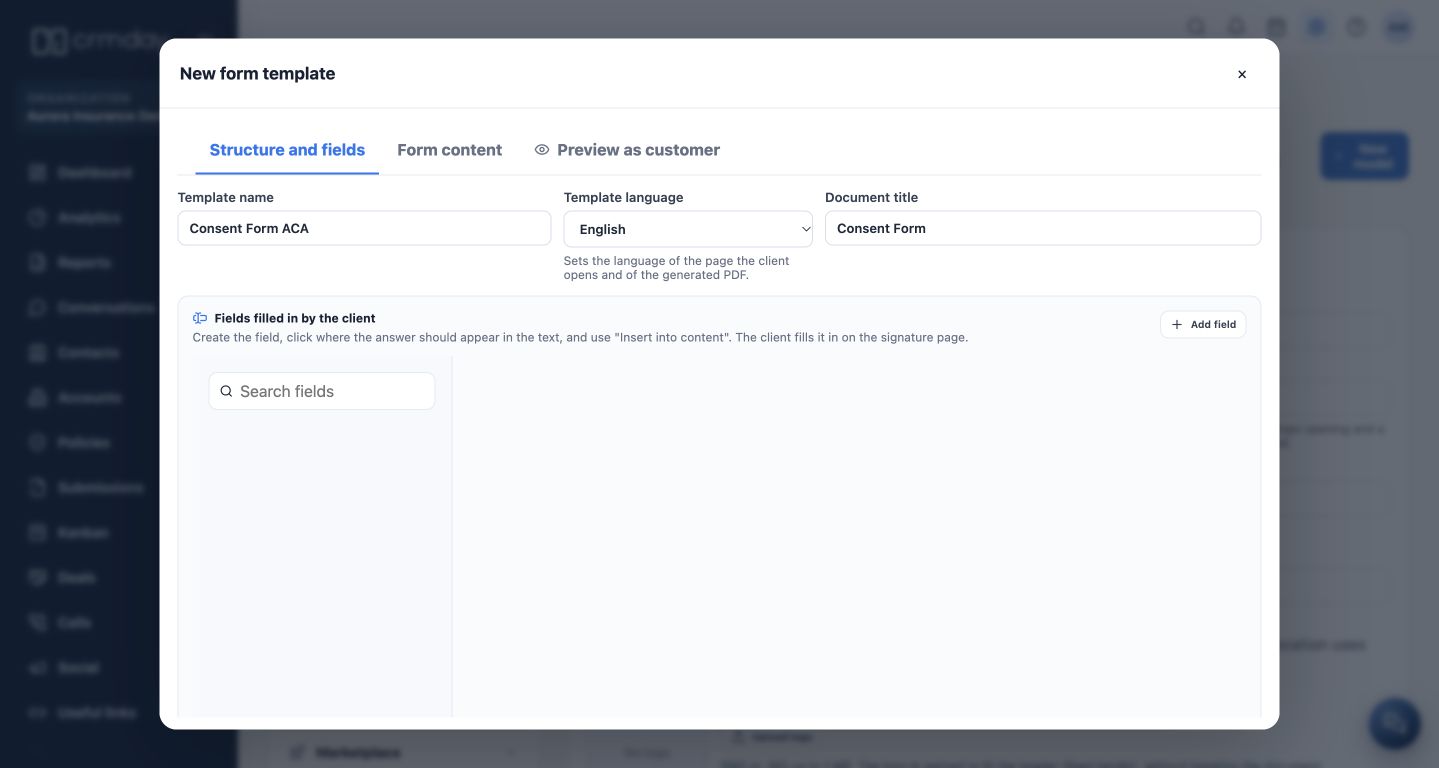
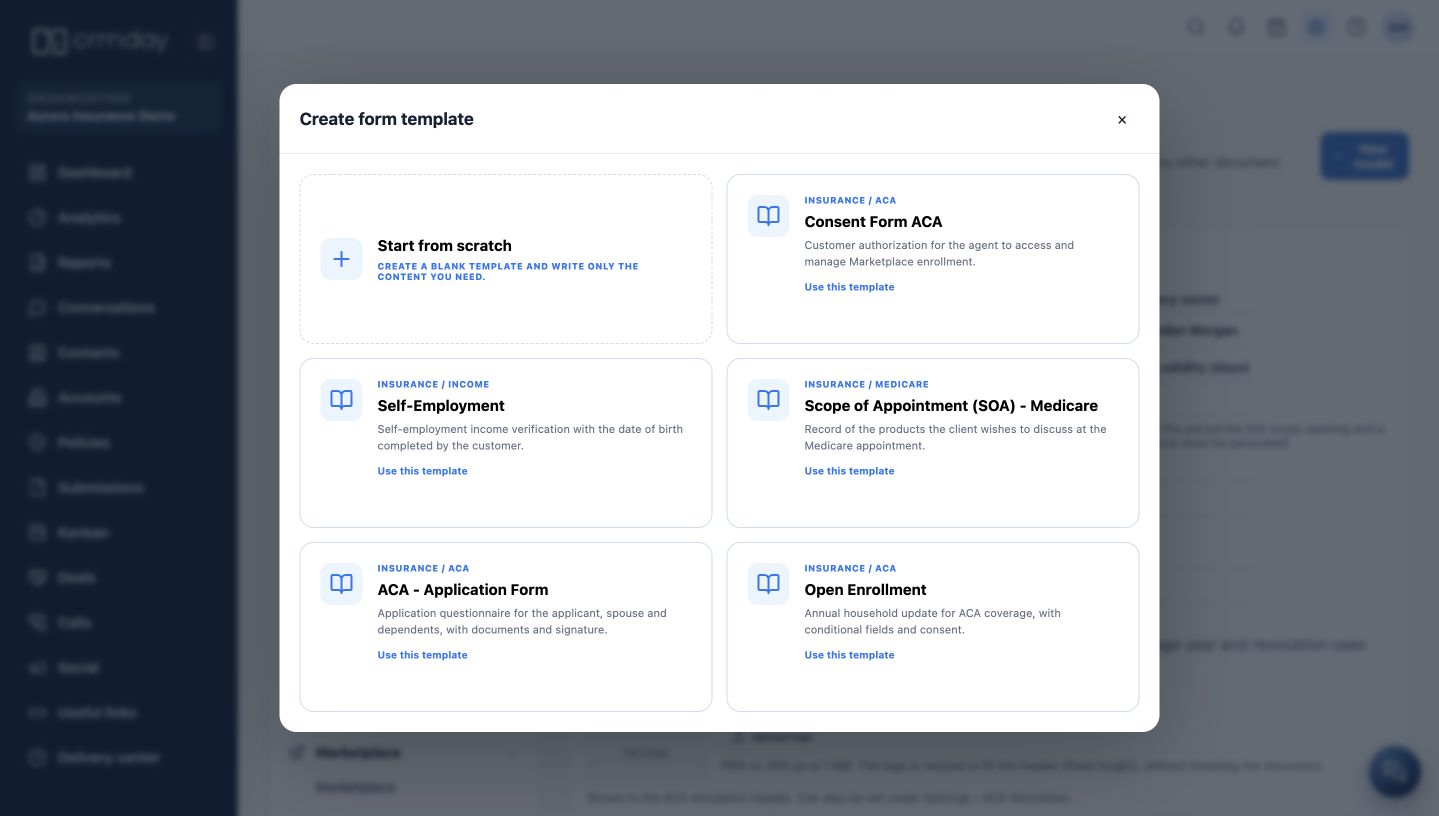
- In Template Forms, choose Edit for the intended template, or continue from the copy selected in the library.
- Check Template name, Template language and Document title. Use a name that helps the team choose correctly, such as “ACA Consent — English”.
- Under Form content, review the text and merge fields. Preserve fields that insert contact, agency and Producer information instead of replacing them all with fixed names.
- Under Structure and fields, check the questions completed by the client and which ones are required. Review acknowledgment statements when the template uses them.
- Use Preview as customer to check presentation. A template preview does not send a request or allow a real signature to be completed.
- Save the template. Before the first real delivery, also check the preview linked to the correct contact and Producer; the generic preview does not replace that check.
Three language checks
- Interface: follows the user’s profile preference.
- Template text: must be written in the intended language. Changing the language selection does not automatically translate the body.
- Client document: check the page and PDF. Open Enrollment has its own language versions and handling, including an English canonical document and, when configured, an additional English consent document.
Template changes apply to new requests. An already issued or signed document keeps the content recorded in that request.
How to check you are ready
The language, content and fields have been reviewed, and the team knows which template to select for each client.