For: CRMDAY One users with the Insurance profile.
Images show actual system screens in a local demonstration environment with fictitious data. They represent different moments in the examples; stage names and fields may vary by agency.
Check whether the opportunity already exists
Find the contact and review their Deals. Bruno Silva already has an ACA Health opportunity; now he wants to discuss Life protection. Because this is a distinct sales need, the example creates Bruno Silva · Life protection linked to the same contact. Avoid duplicating the same negotiation simply because the client sent another message.
Have an opportunity name, product, initial stage and responsible people ready. Fields depend on your configuration and access.
1. Choose the pipeline and enter the business details
- Open Deals and choose the correct pipeline.
- Click New Deal. Add Deal within a column suggests that stage; check the selection.
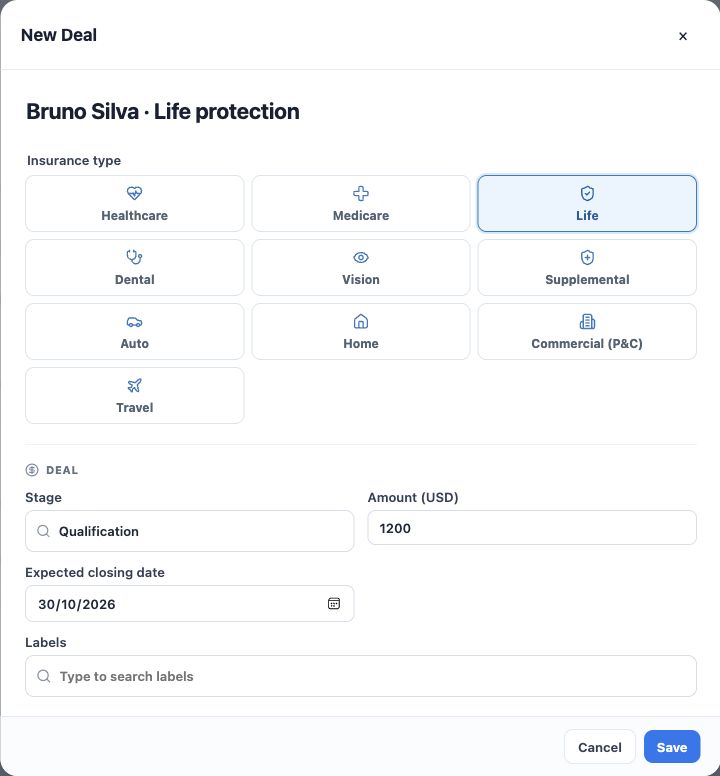
- Enter a recognizable name, such as Bruno Silva · Life protection.
- Under Insurance type, select Life. Check the Stage, such as Qualification.
- Enter an amount and expected closing date when you have a confirmed estimate. Check the currency and use existing labels when helpful.
The $1,200 amount is illustrative. Follow your agency’s convention for a Deal’s commercial amount; do not automatically treat it as a monthly premium, commission or money received. The closing date is a forecast to review as the negotiation changes.
2. Link the person and check the responsible people
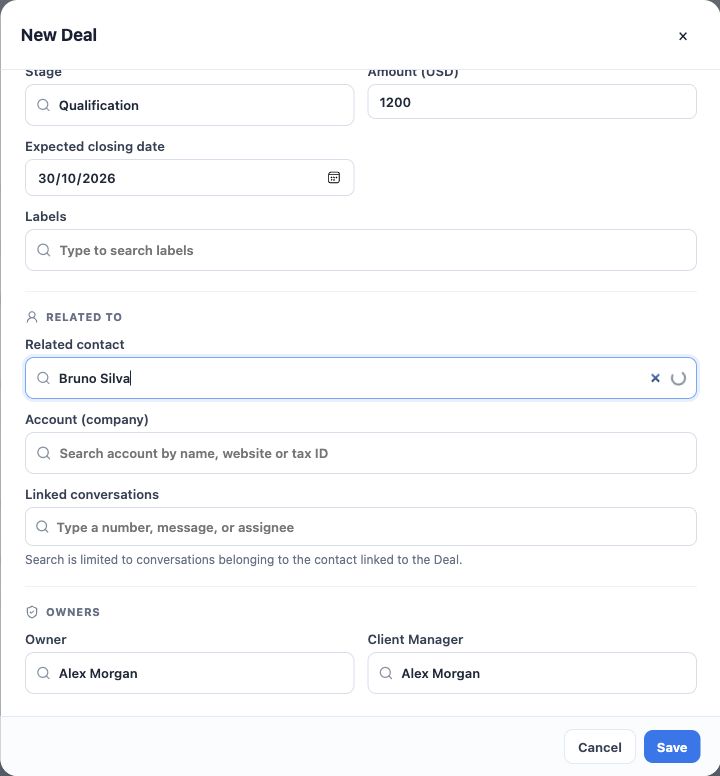
- In Related contact, search by name, phone or email. Select Bruno’s correct record and verify the identifying details.
- Fill Account (company) only when a company is related to the business; it is different from the active agency.
- Link relevant conversations if needed. Conversation search is limited to the selected contact.
- Check Owner and Client Manager according to your team’s arrangements. Complete other required fields before saving.
Do not choose Create new contact if the person already exists. Although the form may allow Deals without a contact in some contexts, the link is essential to continue this Insurance workflow and create a Policy from the Deal.
3. Save and reopen the same Deal
- Click Save and wait for the result.
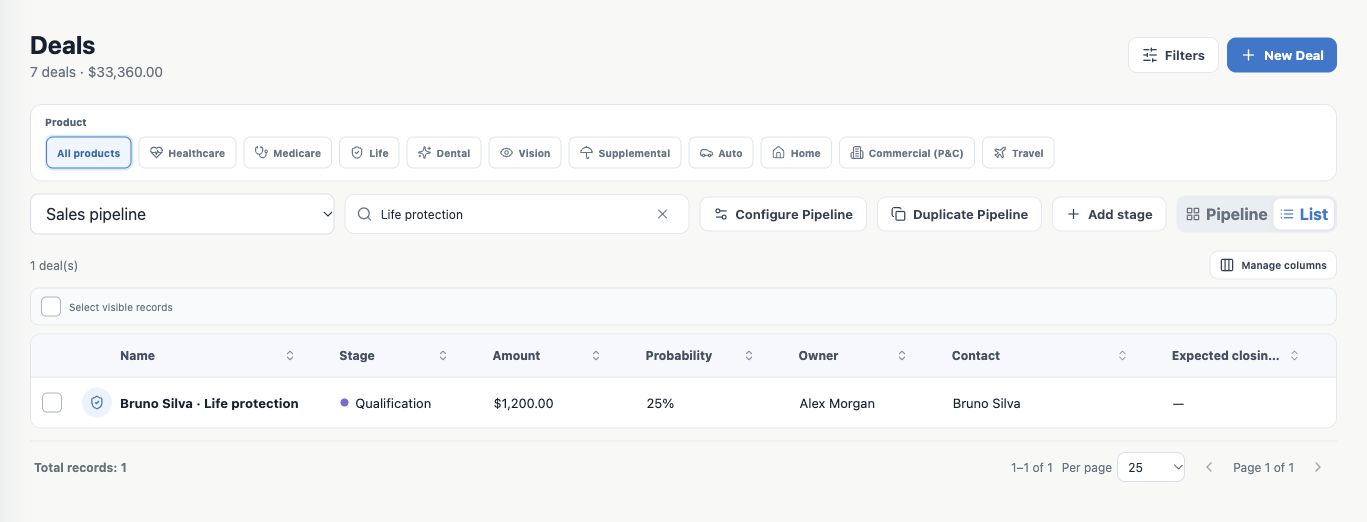
- Search for the opportunity’s name. Switch to List if helpful.
- Open the record and check its product, contact, stage, amount and responsible people. If you entered a date, check how it appears after reopening.
- If an error occurs or the save result is uncertain, search before creating it again.
The example list finds one Life protection opportunity linked to Bruno Silva. Images represent different moments in entering and checking the details.
If a relationship is missing
If the contact cannot be found, check the agency, search and your record access. If you cannot select a responsible person or save a required field, contact your agency administrator. You are done when the saved Deal can be reopened and is linked to the correct person. Continue with Update and move your opportunities.
Keep learning
- Understand the pipeline and its stages
- Update and move your opportunities
- Record tasks and track the next step
- Close an opportunity as won or lost
- Find and organize your clients
Updated October 24, 2026.