For: CRMDAY One users with the Insurance profile.
Start from an actionable indicator
Click an indicator, alert or chart segment to open its corresponding records. An individual row may open a record directly. A product card may change Dashboard focus instead.
Analytics KPIs can open a records window. Always check context before acting.
Example: open a pending document
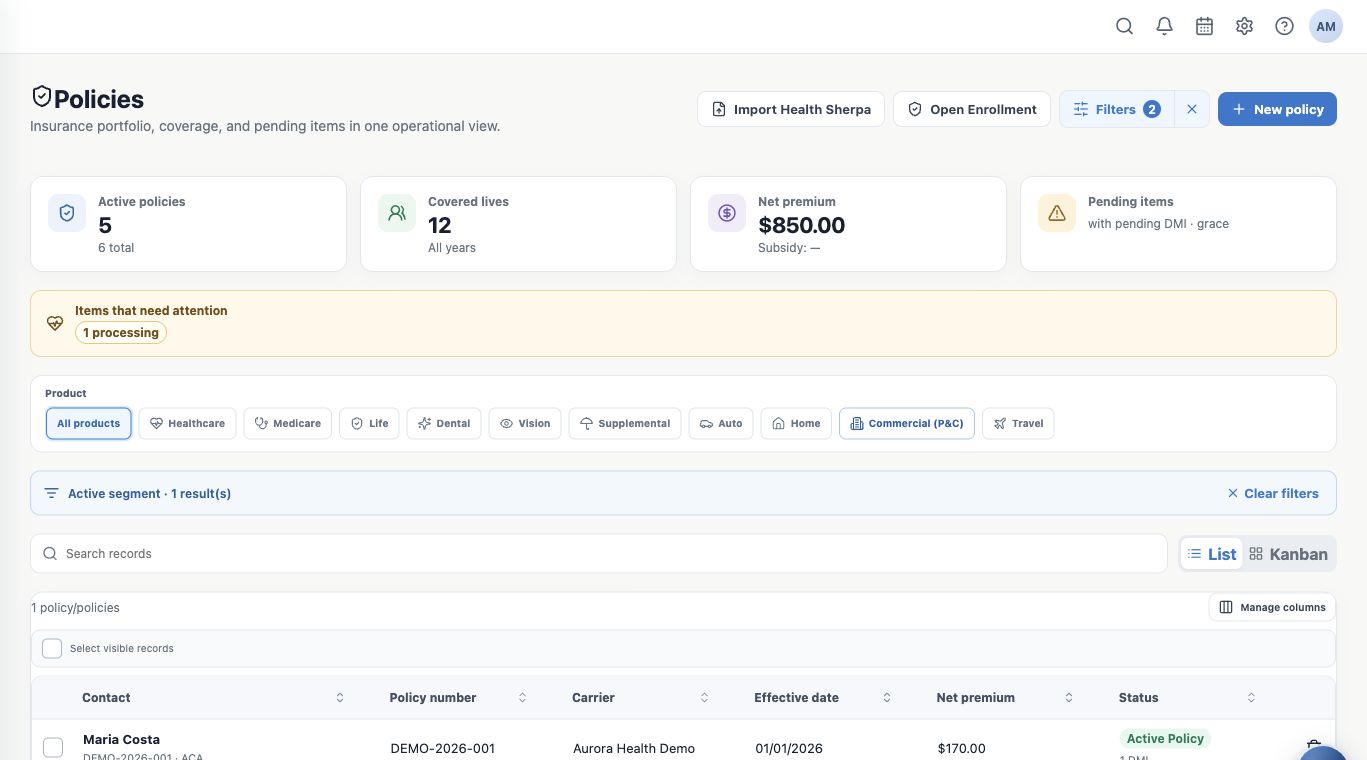
- In Book of business, locate Policies with pending DMI.
- Click the count to open the filtered policy list.
- Check Active scope, result count and Filters. The example returns Maria’s policy.
- Open Filters to review conditions. A Dashboard scope may combine period and pending issue; removing a condition expands it.
Review the policy
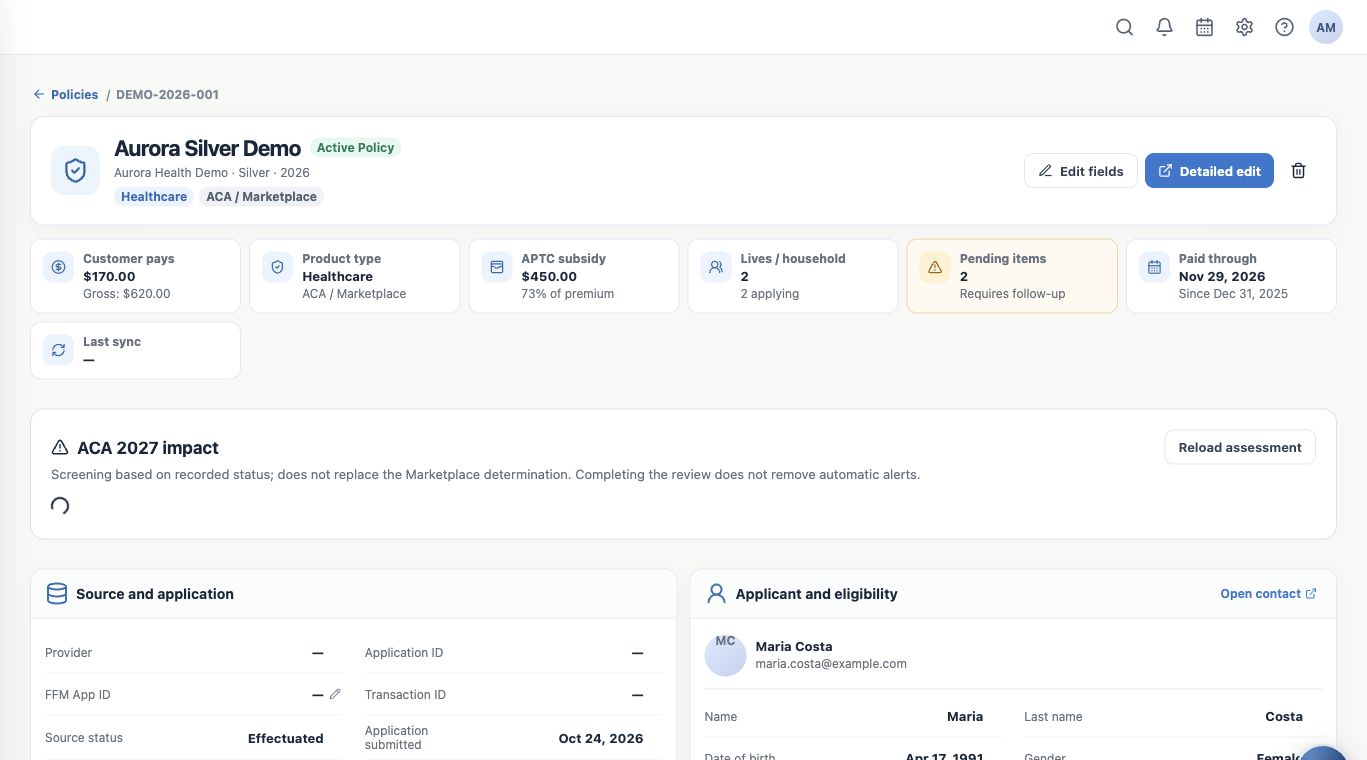
Open the result and check applicant, plan, effective date, status and documents. Open its linked contact for client history.
A DMI alert needs review of the pending item and its source. Attaching a document or completing a Task does not prove the document was accepted.
Example: open clients from Sales
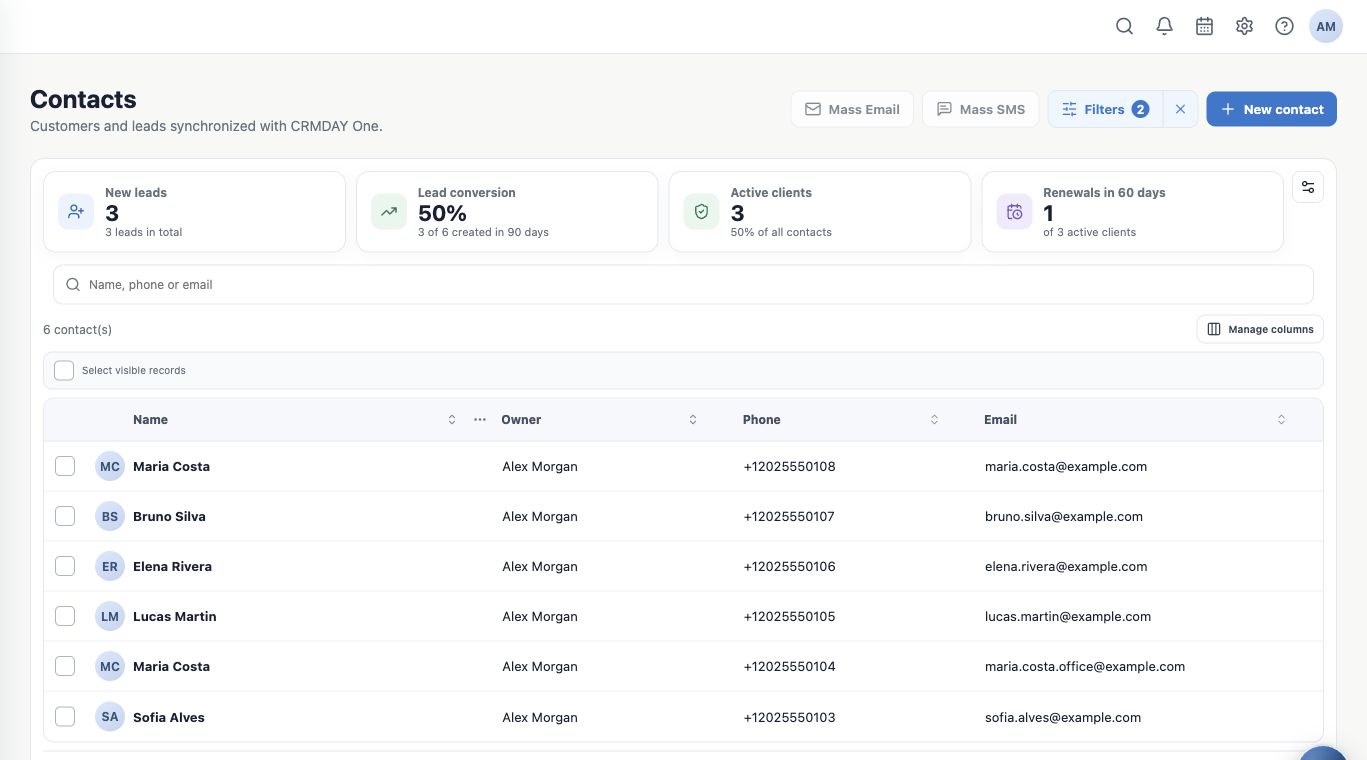
Click New leads in Sales. Contacts opens with that indicator’s scope; review filters and open the person.
Sales indicators and Contacts cards can use different definitions or windows. One may count newly created contacts during a period, while another highlights those still without policies. Compare descriptions and scope, not just totals.
Track follow-up in the contact record
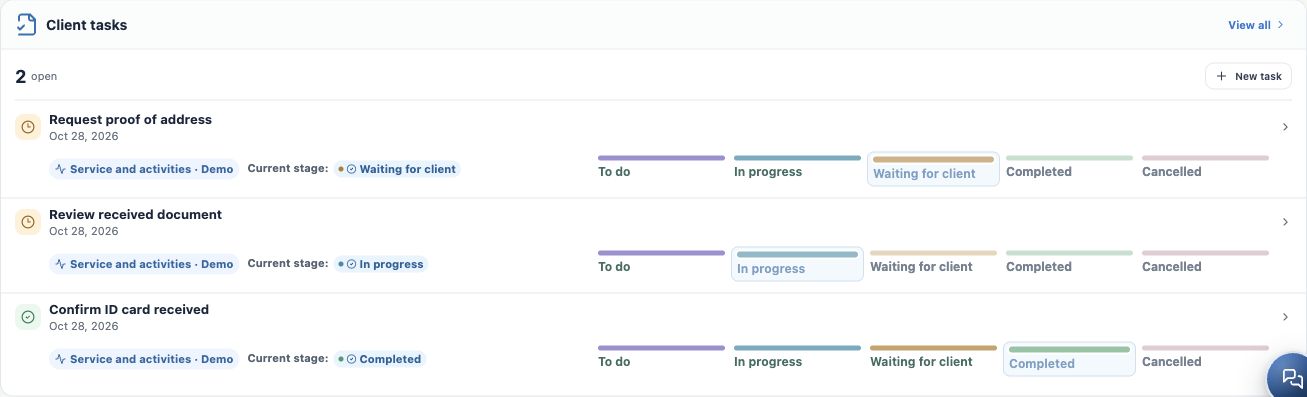
Check Client tasks or Tasks under related records. Linked activities show their board and current stage: the same Kanban Tasks viewed from the client.
Examples: Request proof of address is Waiting for client; Review received document is In progress; Confirm ID card received is Completed. Use View all for the complete list and open a Task for assignee, due date and notes.
Verify your action and return
Confirm saved changes, return to the filtered list or Dashboard and refresh when necessary. Updating a Task does not automatically change every policy or sales indicator.
If totals differ, check period, product, filters, counting unit and access. Continue with Analytics and Reports.
Keep learning
- Start your day with the Dashboard
- Use Book of business and Sales views
- Consult Analytics and Reports available to you
- Check why a record or feature is missing
- Organize activities and processes with Kanban
- Serve your clients
Updated October 24, 2026.