For: CRMDAY One users with the Insurance profile.
Images show actual system screens in a local environment with fictitious data. Captures represent different moments in Nina Torres’s and Maria Costa’s examples.
Open the record and recognize the context
In Contacts, find the person and click their name. Maria Costa’s example at fictitious Aurora Insurance Demo has an active policy, an open opportunity and items requiring follow-up.
Card position and width may vary. Some sections depend on available modules, integrations, data and permissions. An empty section does not by itself mean the contact is incorrect.
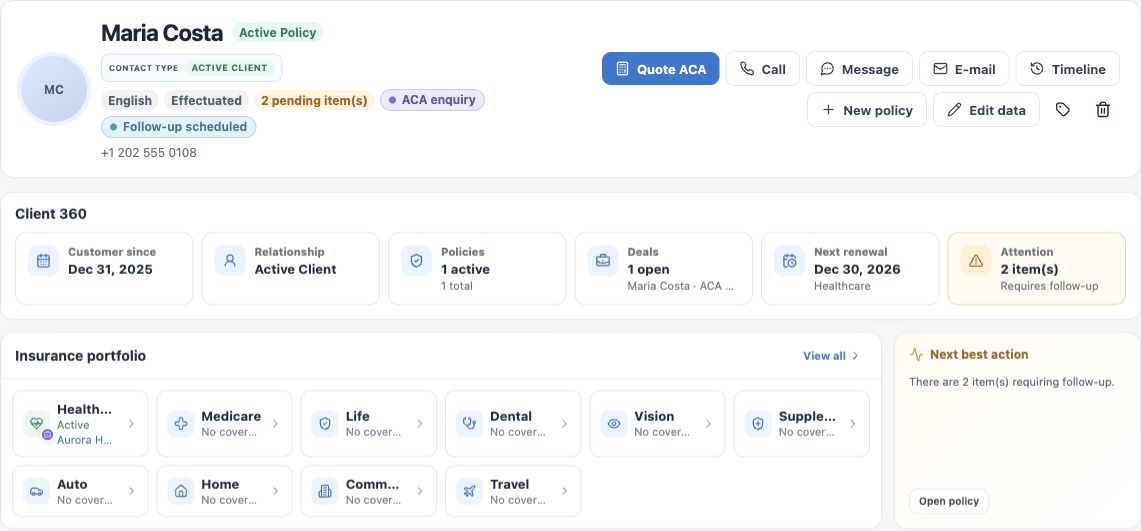
Header, Client 360 and insurance portfolio
| Area | What to review |
|---|---|
| Identity and actions | Check name, contact type, phone and labels. Available actions may include Quote ACA, Call, Message, E-mail, Timeline, New policy and Edit data. Choose the action matching the service request. |
| Client 360 | Summarizes relationship, policies, deals, next renewal and attention. Use the figures to locate what needs review and open details when an action or link is available. |
| Contact type versus relationship | The recorded contact type and the summary calculated from policies are different information. Check related records before concluding that coverage is active. |
| Insurance portfolio | Organizes status by product, such as Healthcare, Medicare and Life. A product without recorded coverage and a sales opportunity are different situations. Use cards and View all to review available links. |
| Next best action | Highlights follow-up suggested by existing data. Review the outstanding item or opportunity and record your next action; the notice does not mean a task has been performed. |
In the example, the two attention items belong to the policy’s context. They do not necessarily represent two different policies.
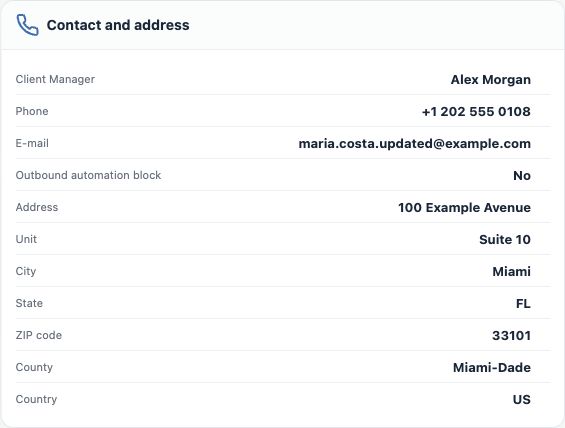
Personal details, contact information and address
| Section | Purpose |
|---|---|
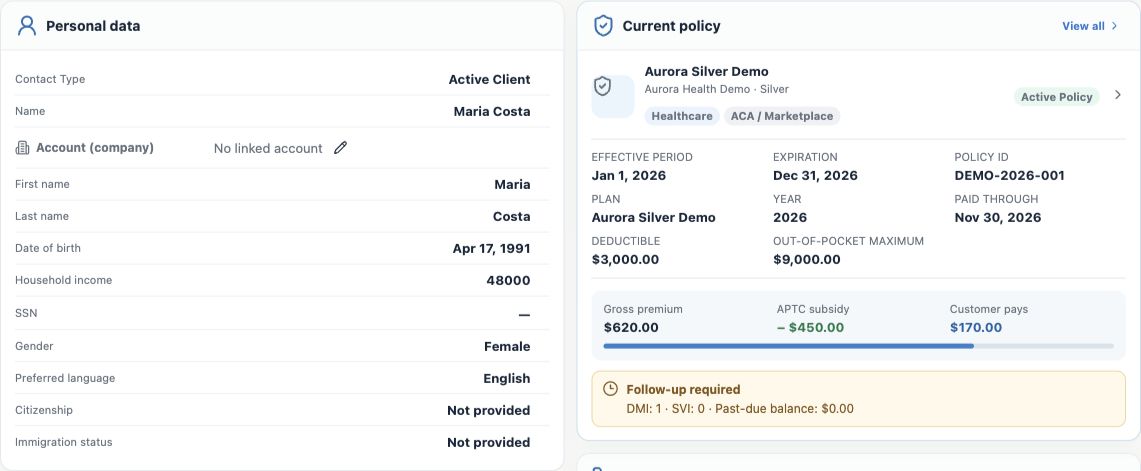
| Personal data | Name, contact type, linked account and available identity details, such as birth date, preferred language and household income. Sensitive-field availability depends on access. |
| Contact and address | Phone, email, Client Manager, address and the automated-messaging block. Check these before calling, writing or sharing materials. |
| Lead source | Shows where the contact came from and the source detail when provided. It helps explain the initial service context. |
| Access information | A dedicated area for access records associated with the contact, with protection and actions based on permissions. Do not copy passwords into notes or messages. |
| Payment methods | Shows payment methods recorded for the contact when available. Use the appropriate record for the service request; do not put complete card details in ordinary notes or attachments. |
Policy, application history and coverage context
Current policy shows product, plan, insurer, status, dates, amounts and outstanding items. Open the policy for the full record, or use View all to review other policies. The record may also highlight future coverage when available.
Application history brings together application/policy records across the relationship. It differs from Timeline, which helps review service events.
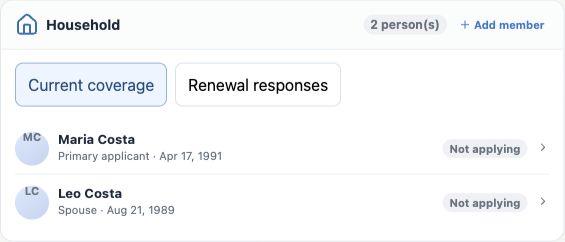
Understand Household and compliance information
Household shows family members associated with the policy context. Check the selected person and coverage before reviewing or changing a member. Current-coverage and received-renewal tabs distinguish contexts when data is available.
Eligibility and compliance brings together process information and states, such as citizenship/immigration status, consent, review and documents where applicable. It reflects recorded data; a quote or CRM record does not replace confirmation of enrollment or coverage.
Tasks, meetings, calls and conversations
| Area | When to use it |
|---|---|
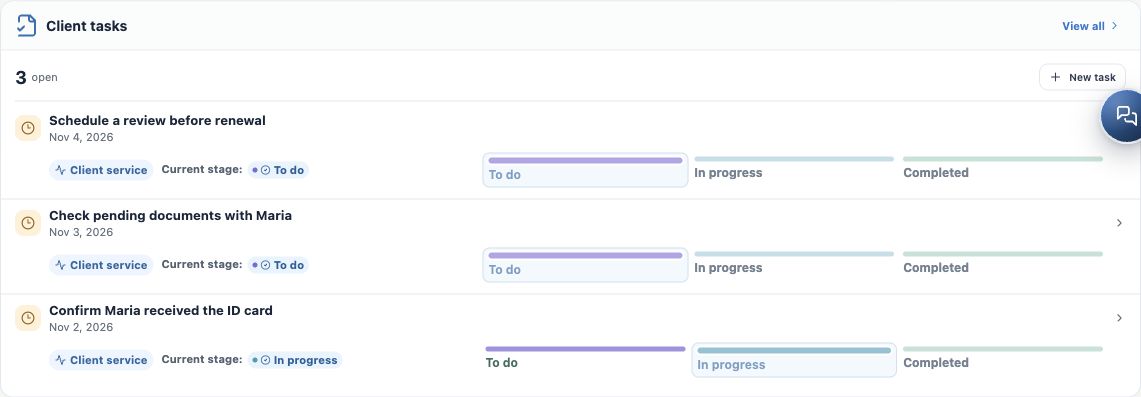
| Client tasks | Review open follow-ups, stages and due dates. Open a task or View all for the list. Use New Task to record a next action when the feature is available. |
| Client meetings | Review related meetings and their times. Meetings and tasks represent different commitments. |
| Calls | Review associated calls and, depending on integration and access, their details. A phone number on a record does not mean a call has been made. |
| Message | Open the contact’s service conversation or start one using available channels. Check history to avoid asking again for details already provided. |
| Website behavior | When tracking is enabled and data is available, review recorded visits and interactions. This area may be hidden or contain no information. |
Emails, forms and ACA simulations
| Section | What to check |
|---|---|
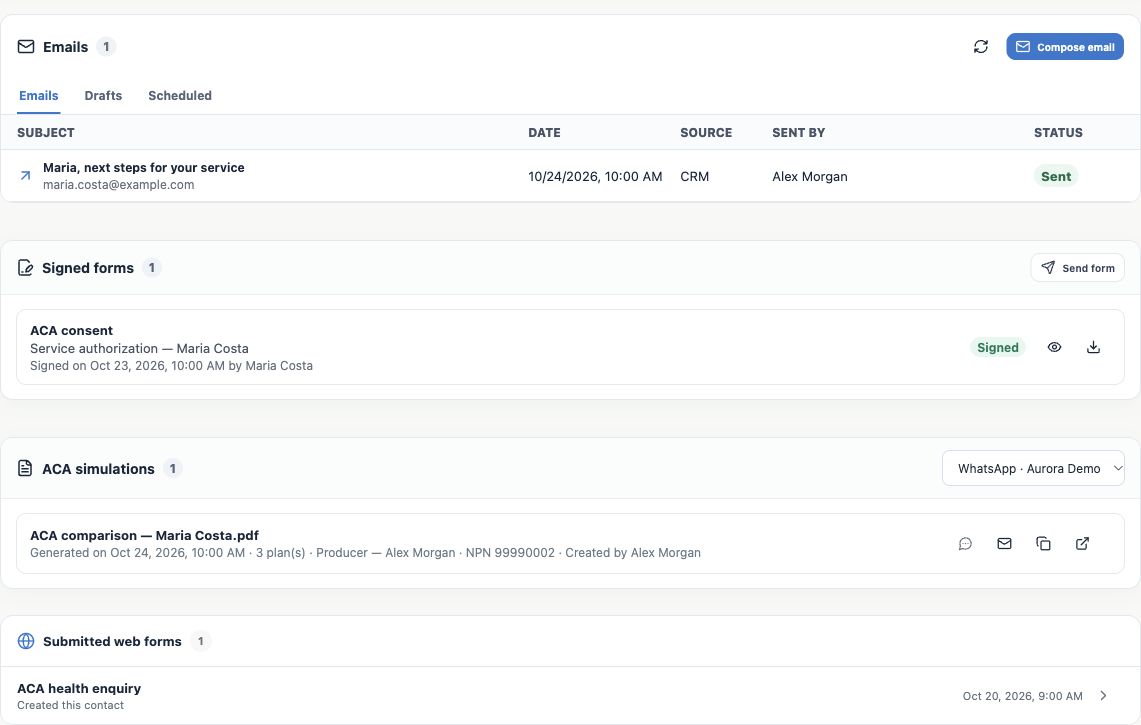
| Emails | Review messages linked to the contact. Tabs distinguish emails, drafts and scheduled messages; a draft has not yet been sent. Composing and sending depend on available accounts and senders. |
| Signed forms | Track forms sent for reading, completion and signature. Check each request’s state, such as pending or signed, and open the appropriate document. |
| ACA simulations | Find generated comparisons, PDFs/links and the responsible Producer. A simulation does not prove active coverage. |
| Submitted web forms | Review received web forms, date, contact origin and available answers. A lead intake form is different from signed consent. |
Deals, audit information, notes and attachments
| Area | How it helps |
|---|---|
| Deals | Follow related sales opportunities, products, stages and responsible users. A won Deal alone does not mean an active policy. |
| Audit trail | Review Owner, record creation and modification. Use it to understand who maintains the record; the author of a change is different from the Client Manager. |
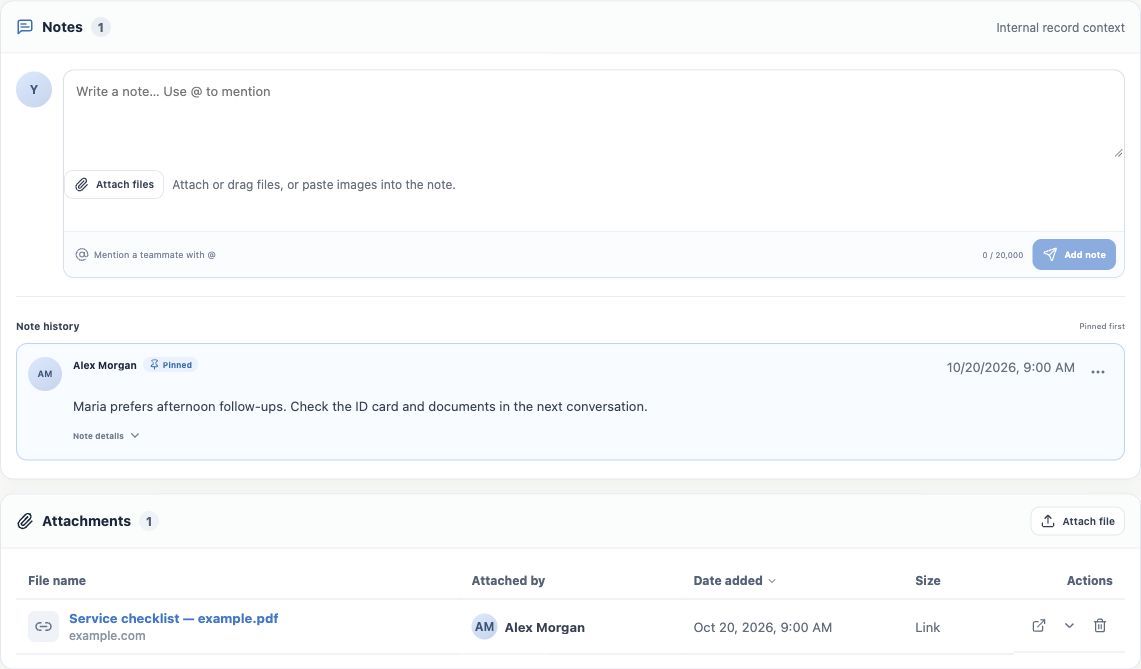
| Notes | Record useful internal context, such as preferred contact times and conversation outcomes. A note does not replace a message sent to the client. |
| Attachments | Find files or links associated with the record and check name, inclusion date and responsible user. Use the correct link to avoid mixing different people’s documents. |
| Timeline | Use the header action to review available events and open their source records. It complements the record’s sections. |
A simple review routine
- Confirm identity in the header and contact details.
- Review Client 360, portfolio and outstanding items before answering coverage questions.
- Open the conversation, policy, Deal or document related to the request.
- Check tasks and record the next action with a due date and responsible user.
- Update confirmed details and leave useful internal context for continuity.
You are ready when you can find information without creating another record for the same person. Next, see how to edit and maintain contact details.
Keep learning
- Find a contact before creating a new one
- Create a new contact
- Edit and maintain contact details
- Organize and filter your contact database
Updated October 24, 2026.