For: CRMDAY One users with the Insurance profile.
Know where they appear
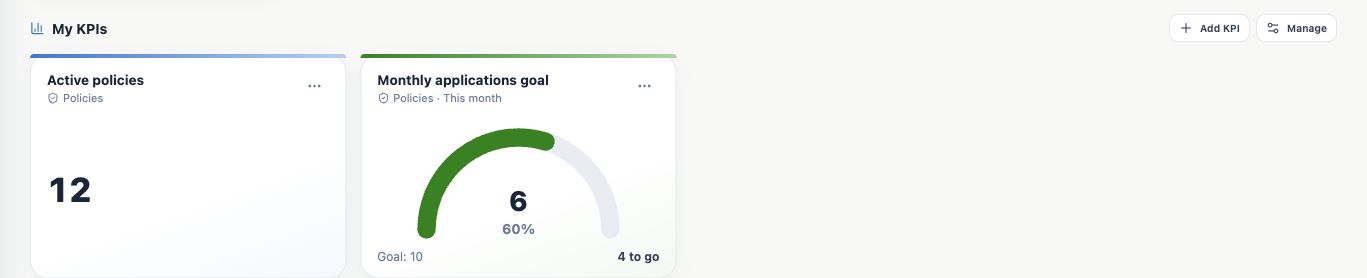
Pinned indicators appear in My KPIs at the top of Dashboard, above either Book of business or Sales. The selection belongs to your user.
This does not insert the KPI into native charts in those views. It creates a separate home-page card with its own definition and filters.
Pin an existing KPI
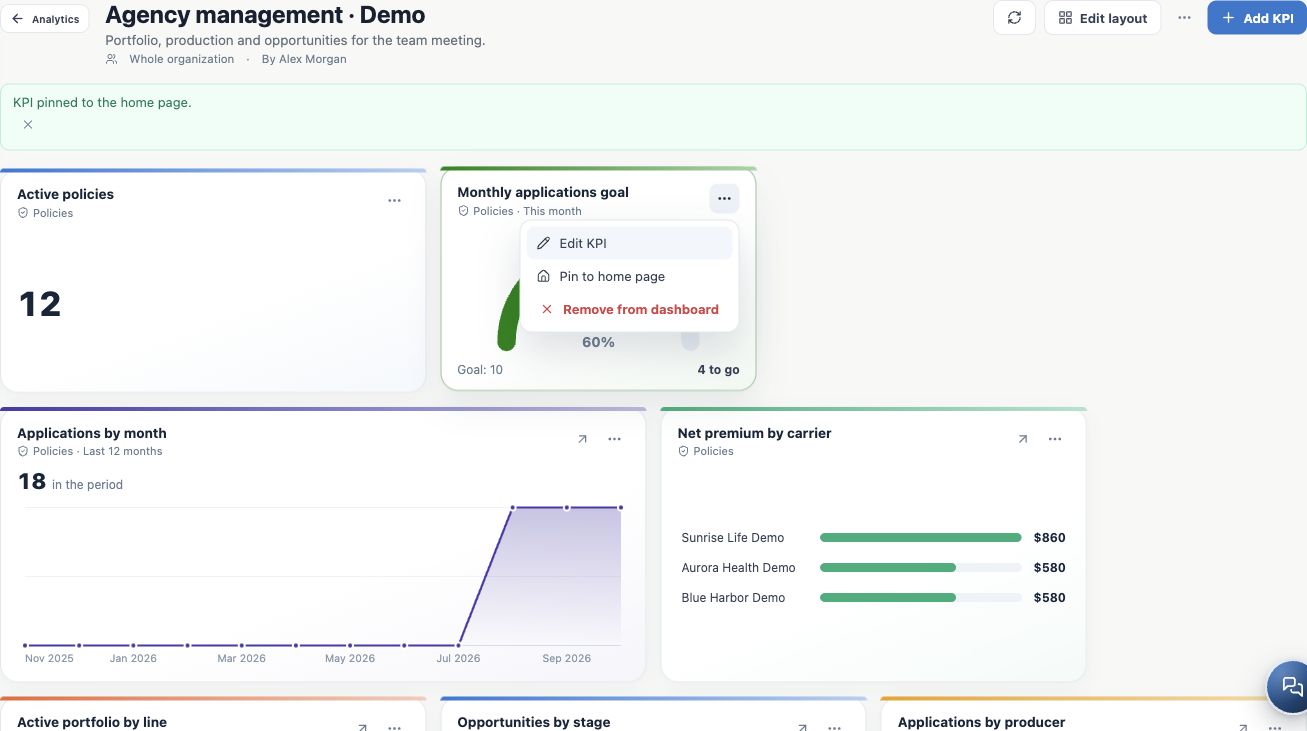
- Open the KPI library or a dashboard containing it.
- Open its actions menu.
- Choose Pin to home page.
- Return to Dashboard and verify My KPIs.
- Open the number to check the expected records.
Create from home
With no pins, use Bring your KPIs to the home page. Otherwise use Add KPI in My KPIs.
- Choose a model and configure data, dates and filters.
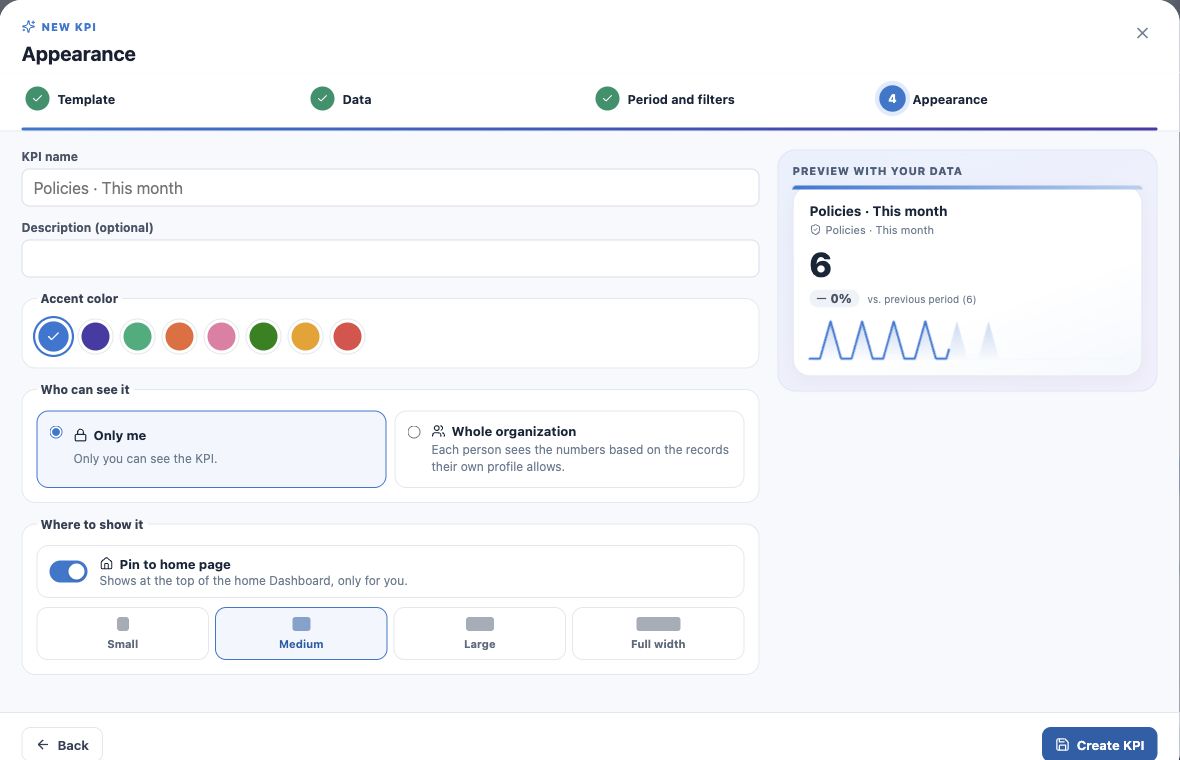
- In Appearance, verify Pin to home page, suggested by this entry point.
- Choose size and create.
- Check the library definition and home card.
Keep native-view filters separate
A monthly-application KPI retains its own Application date and range. Changing portfolio filters does not automatically change this card; the same applies to Sales.
Compare titles and definitions. Edit or create a clearly named indicator when you need a different scope.
Manage and remove pins
Manage opens the library. Remove from home page removes the personal card while keeping the definition and other dashboards.
Each user can pin up to 12 KPIs. Remove unnecessary daily cards before adding beyond the limit. Unpinning is different from deleting a KPI.
Keep home focused
A useful starting selection includes monthly applications, pending documents and upcoming renewals. Use custom dashboards for deeper analysis.
Sharing an indicator does not pin it for colleagues. Each person chooses their own cards and sees permitted data.
Keep learning
- Plan your KPIs and learn the Analytics wizard
- Create numeric indicators and production goals
- Create application and renewal trends
- Compare carriers and show product share
- Create funnels and rankings for team follow-up
- Build custom dashboards and use the insurance template
- Review, edit and validate indicators
- Organize activities and processes with Kanban
- Stay on top of your day
Updated October 25, 2026.