For Insurance agency Owners and administrators.
Organize the action sequence
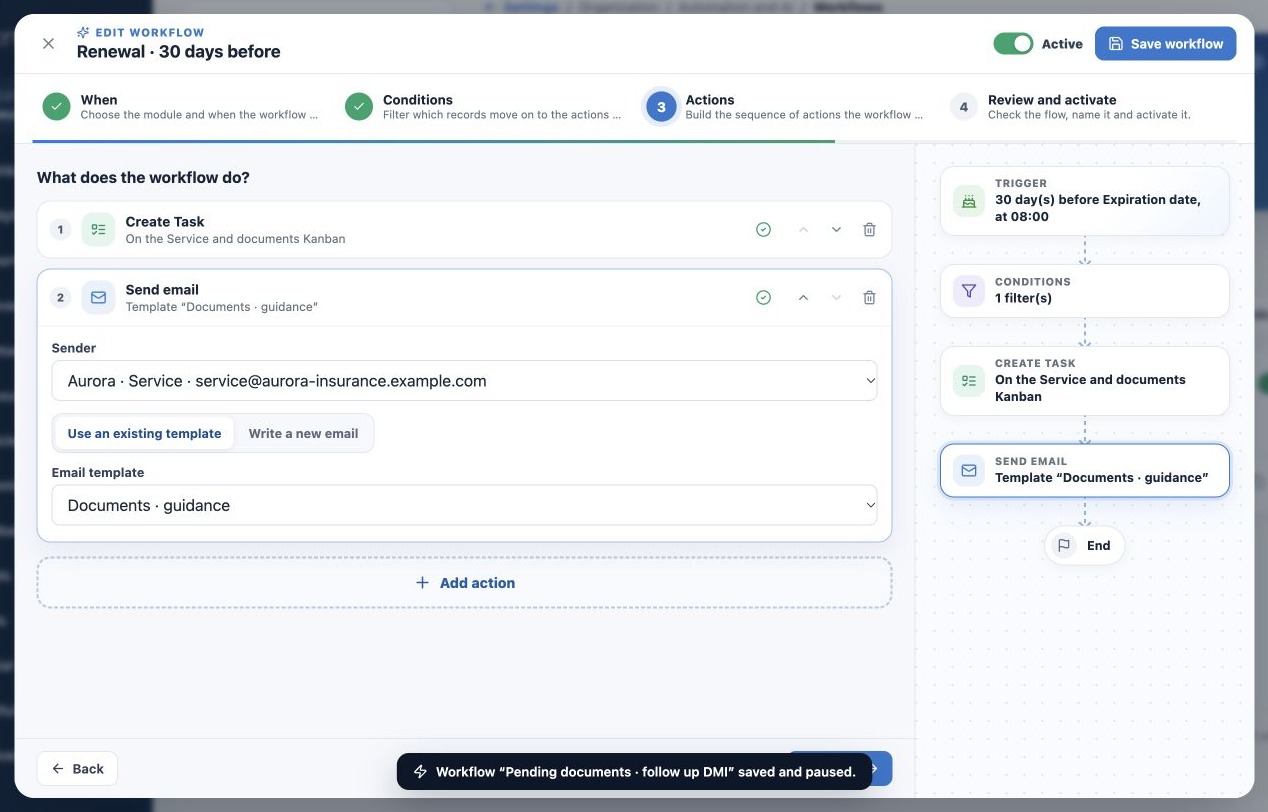
In Actions, use Add action. Open each item and use Move up or Move down to reorder it. The builder allows up to 15 actions. The flow view shows sequence and highlights incomplete configuration.
This is a linear sequence with general conditions and waits. Filters are not independent if/else branches. Plan another appropriately filtered workflow for another path. Removing an action from the editor changes the definition only after saving.
Configure email, SMS and WhatsApp
- For Send email, choose the connected organization sender and an existing template, or Write new email.
- For new content, provide template name, subject and body. Saving the workflow creates a reusable email template. Preview and review language.
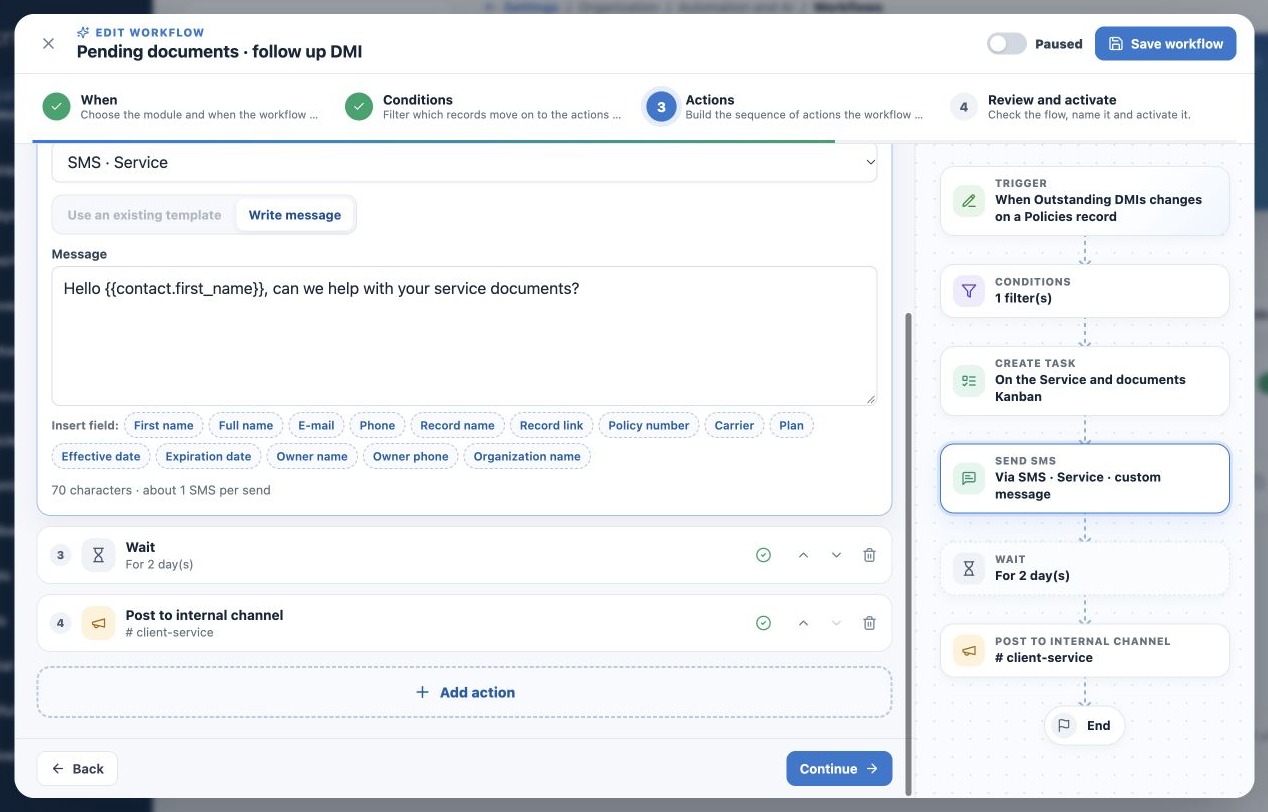
- For SMS or WhatsApp, choose the inbox and compatible template or write content when allowed.
- An official WhatsApp inbox requires an approved template available to it.
- Check related contact, email or phone and authorization for the communication.
Workflow email uses the organization sender offered by this editor. It does not show the Mailbox/Email marketing selector used in stage automations. A campaign-only identity does not replace a connected mailbox here. See Message templates.
Fields such as {{contact.first_name}}, {{record.link}} and {{organization.name}} personalize content when context exists. A form field does not create a form. Queuing does not guarantee delivery, reading or a reply; check history and Delivery Center.
Create Tasks and Deals with context
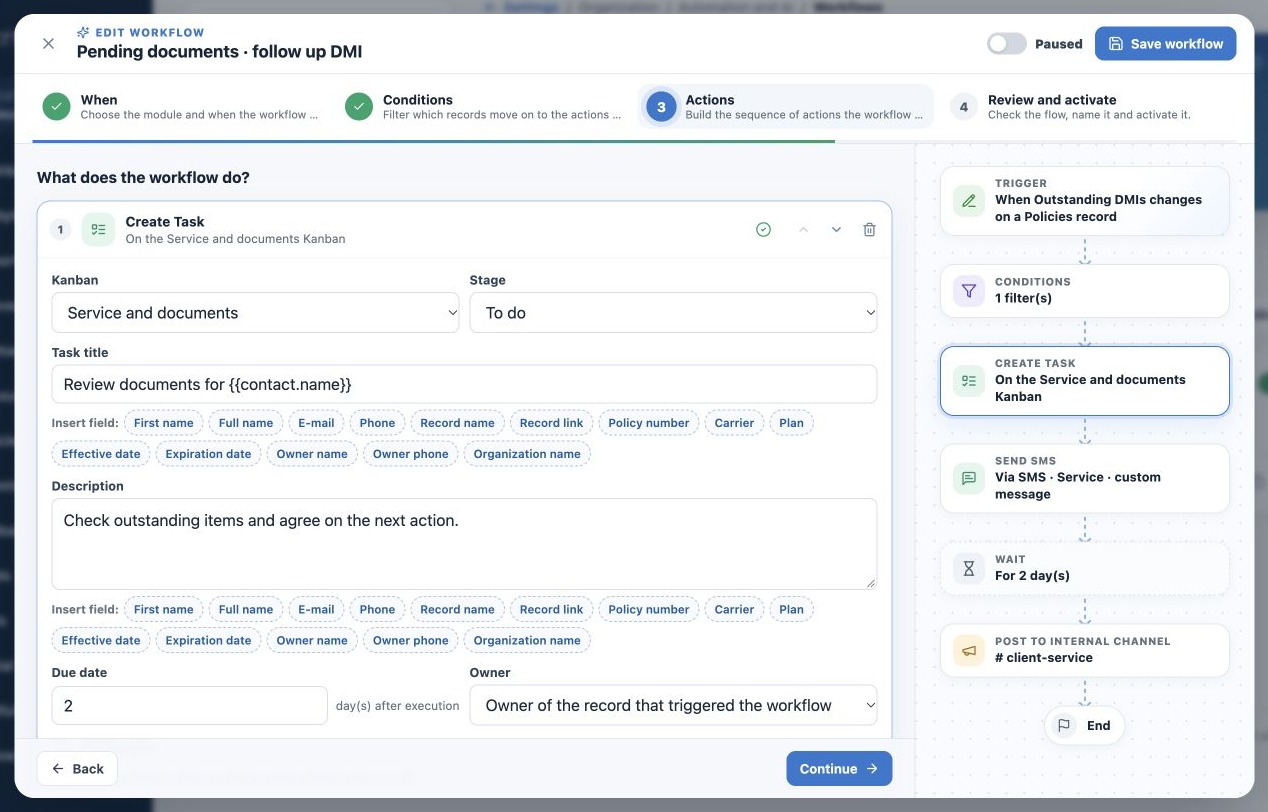
For Create Task, choose Kanban, stage, title, description, deadline and owner. Use source-record owner or a fixed active person. Deadline is relative to execution; No deadline is separate. Check Link the Task to the record’s contact, Deal and account to preserve available relationships.
Example: Review documents for {{contact.name}}, in Service and documents, To do, due in two days. The assignee gets a concrete follow-up activity as well as the client message.
Create record creates a Deal in the selected pipeline/stage with name, optional value and owner. It does not create an approved Policy or replace coverage decisions. Use it for an annual-review opportunity linked to the available contact/account.
Use other actions deliberately
| Action | Setup and care |
|---|---|
| Update field | Choose source or related record, allowed field and value. Some support clearing or relative dates; not every system field is writable. |
| Add label | Choose target and labels to identify follow-up; not a substitute for actual status. |
| Notify internal channel | Choose a collaboration channel allowing automation posts. Notices show Bot and workflow name. |
| Wait | Set minutes, hours or days; filters are rechecked on resumption. |
| Call webhook | An integration endpoint receives record data by POST. Agree endpoint, authentication and duplicate handling with its technical owner first. |
An action may be skipped if its value or label is already present. Field updates can trigger other workflows; avoid rules undoing one another. Cycle protection helps but does not replace coherent rules.
Related guides
- Understand when to use agency Workflows
- Configure triggers, dates and frequency
- Filter records and control behavior after a wait
- Review, test and activate with control
- Monitor runs and resolve failures
- Administrator manual
Reviewed October 26, 2026.