For Insurance agency Owners and administrators.
Guides in this chapter
- Configure triggers, dates and frequency
- Filter records and control behavior after a wait
- Build workflow actions and channels
- Review, test and activate with control
- Monitor runs and resolve failures
What a workflow does
A workflow turns a record event into a sequence of actions. For example: when a policy becomes Active, check that status, send a welcome message and create a follow-up Task. Another flow can start 30 days before expiration without someone moving a card.
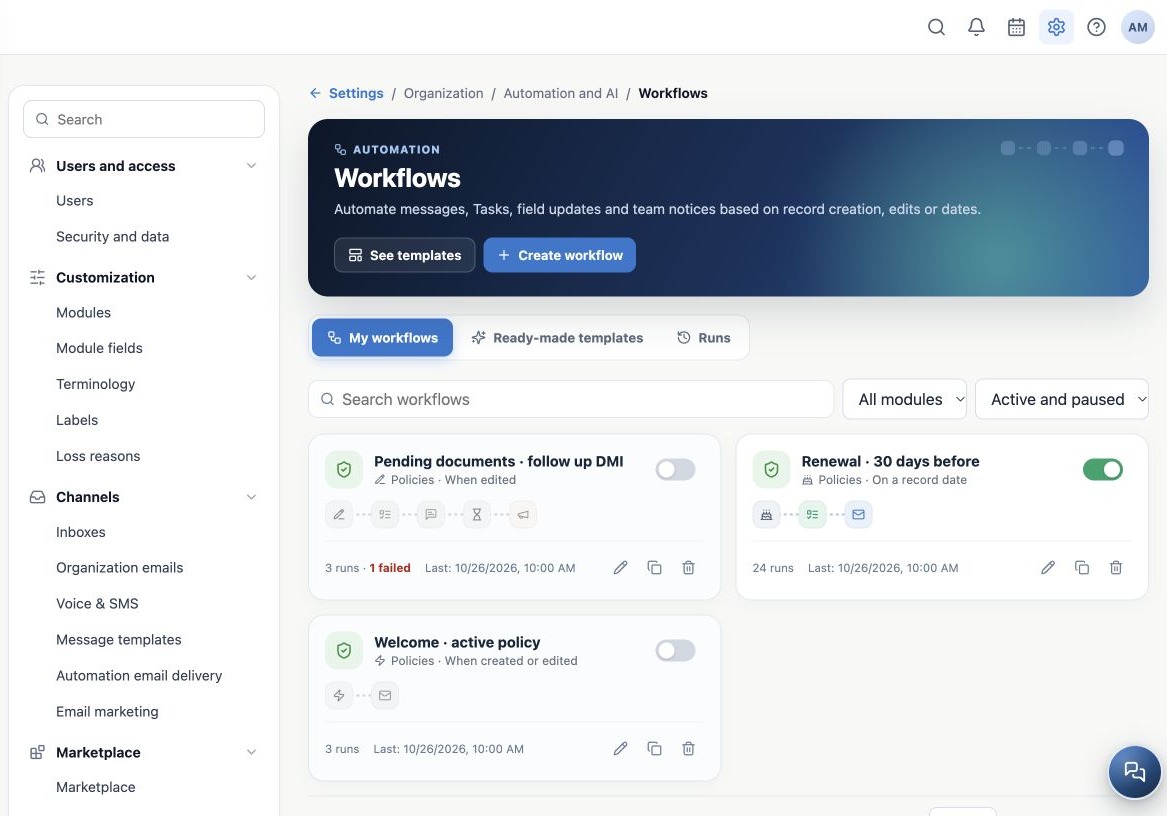
Open Administration → Settings → Automation and AI → Workflows at /settings/workflows. Owners and administrators configure agency flows. Available modules and templates follow the account’s enabled features.
Read the flow as When, If and Then
| Part | Question | Example |
|---|---|---|
| Trigger | When to evaluate? | When the policy’s outstanding DMI count changes. |
| Conditions | Which records continue? | Only when outstanding DMI count is greater than zero. |
| Actions | What happens, and in what order? | Create Task, send SMS, wait and notify the team. |
| Frequency | Can the same record repeat? | Every event or only once per record. |
The module is the observed record: Contact, Account, Deal, Task, Meeting, Call or Policy, as available. A Policy workflow can use its related contact; duplicating the contact is unnecessary.
Choose workflow or stage automation
| Use | Suitable when |
|---|---|
| Kanban/Deals stage automation | The action depends on a stage and events configured in that board or pipeline. |
| Workflows | The process follows record creation, field changes or dates, with ordered actions and waits. |
Both can coexist. If both send the same message to a client, that client may receive two separate communications. Review existing automations and assign each sending responsibility deliberately. One workflow’s repeat protection does not coordinate different flows.
Explore the page and plan your first flow
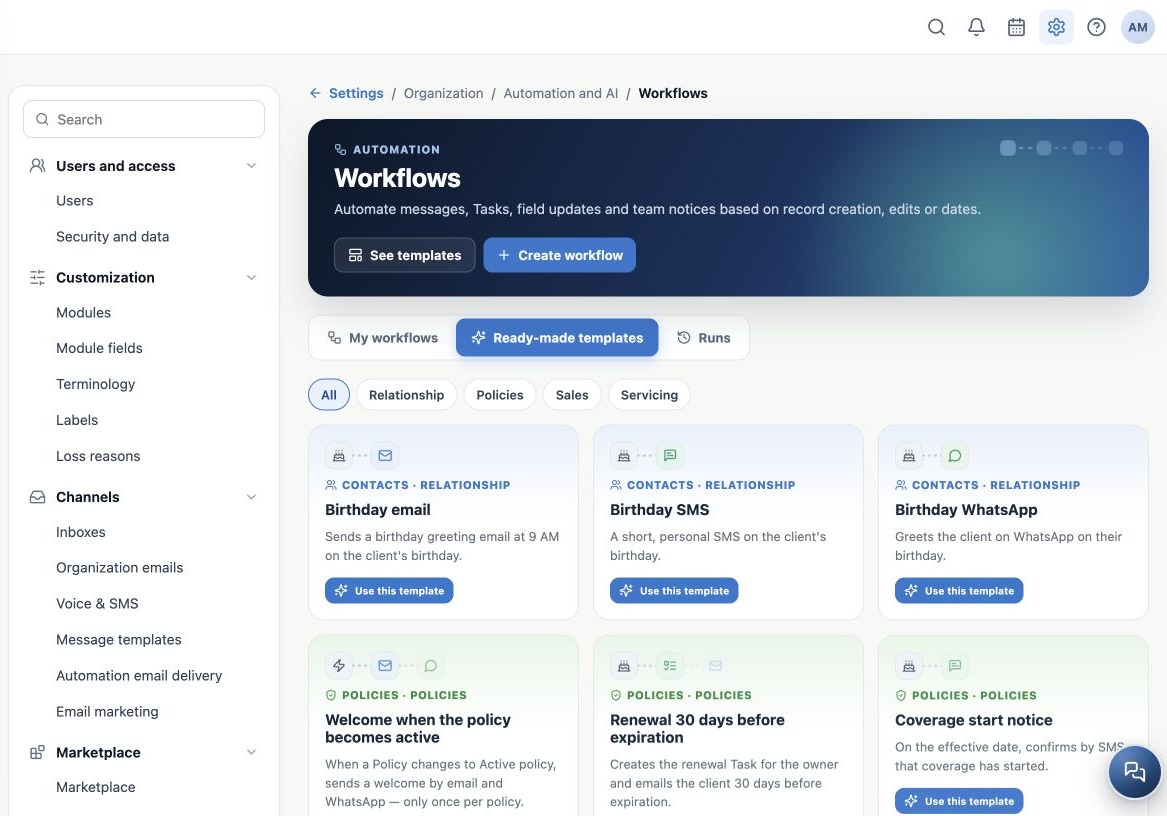
My workflows provides search, module/status filters, counters, editing, duplication and activation. Ready-made templates offers starting points for birthdays, welcome, renewal, documents and call follow-up. Runs shows each trigger’s result and individual steps.
- Choose a simple process and define its expected result.
- Write down module, event, filters, actions, frequency and who monitors it.
- Check required sender, inbox, templates, Kanban, stage and assignees.
- Open a template or Create workflow and review all four steps before activating.
A ready-made template is a starting point. Review preselected resources and message language before using it with clients.
Related guides
- Configure triggers, dates and frequency
- Filter records and control behavior after a wait
- Build workflow actions and channels
- Review, test and activate with control
- Monitor runs and resolve failures
- Administrator manual
Reviewed October 26, 2026.