For Insurance agency Owners and administrators.
Prepare a complete vocabulary
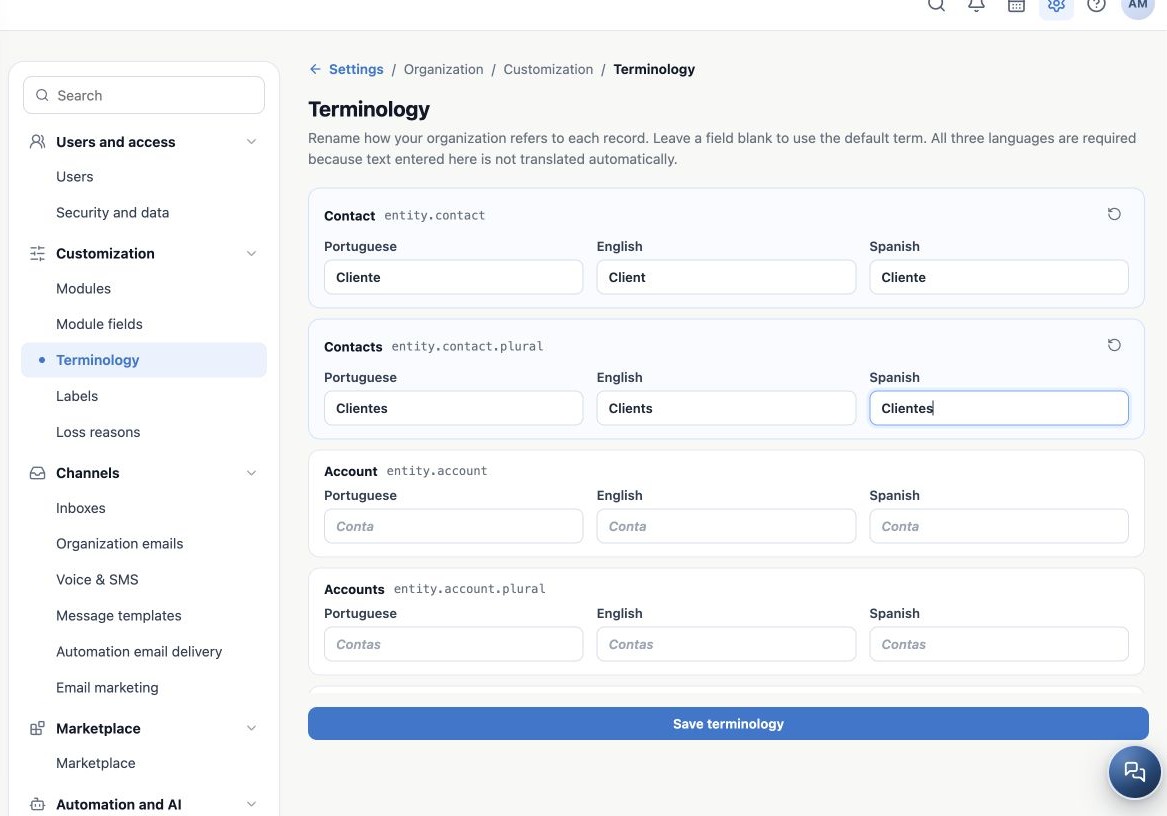
Agree on the same meaning in all three languages before editing. Singular and plural are independent items. If you rename only Contact, the list may still say Contacts. Also consider Related contact so forms remain consistent.
| Item | Portuguese | English | Spanish |
|---|---|---|---|
| Contact | Cliente | Client | Cliente |
| Contacts | Clientes | Clients | Clientes |
| Related contact | Cliente relacionado | Related client | Cliente relacionado |
This is a vocabulary choice for the fictitious Aurora agency. Keeping the original terms is valid; customization is optional.
Enter and save
- Open Customization → Terminology.
- Find the original term, such as Contact.
- Enter equivalents in all three inputs. Each value allows up to 80 characters; keep names short.
- Repeat for the plural and any related terms you chose to customize.
- Click Save terminology and wait for confirmation.
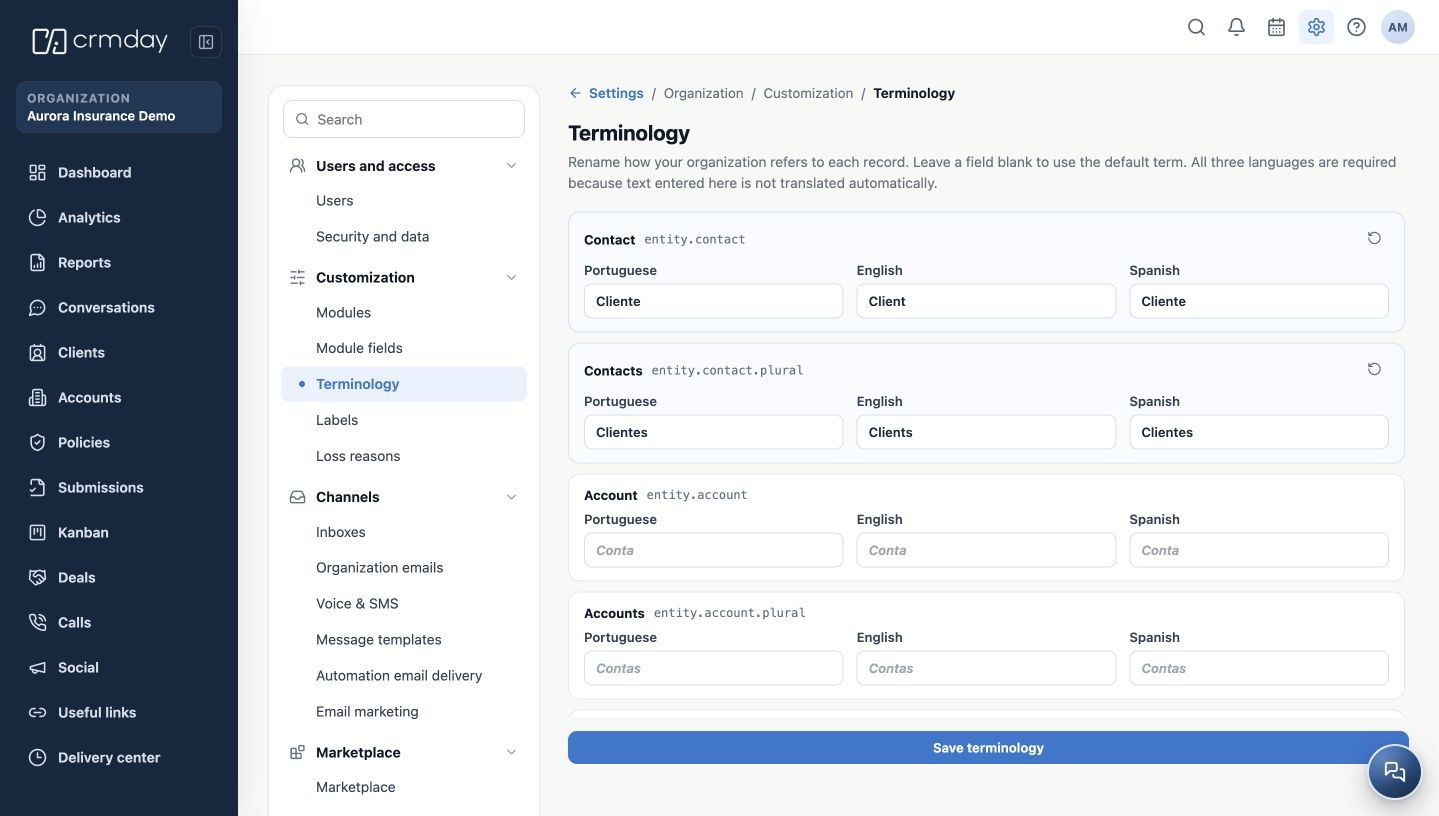
- Reopen the page and check the values. Open the corresponding module and verify its name in the menu and in a screen that uses the term.
Entered terms are not translated automatically. Completing only one or two languages prevents saving. Complete all three languages for an item, or leave all three blank to inherit.
Check with users of different languages
In the demonstration, after saving and reopening, navigation showed Clientes in Portuguese and Spanish and Clients in English. Each user sees the term for their profile language. An administrator’s change affects other users in that agency wherever terminology is supported.
Use your own profile language to validate all three versions, refresh if needed, and check singular and plural. Do not change another user’s preferences to test. If an old name appears in a particular sentence, check whether that sentence consumes terminology: the setting does not replace free text or every product message.
Related guides
- Understand what Terminology changes in your agency
- Restore inherited terms and resolve common questions
- Labels
- Loss reasons
- Administrator manual
Updated October 25, 2026.