For Insurance agency Owners and administrators.
Identify the symptom
| What you see | What to check |
|---|---|
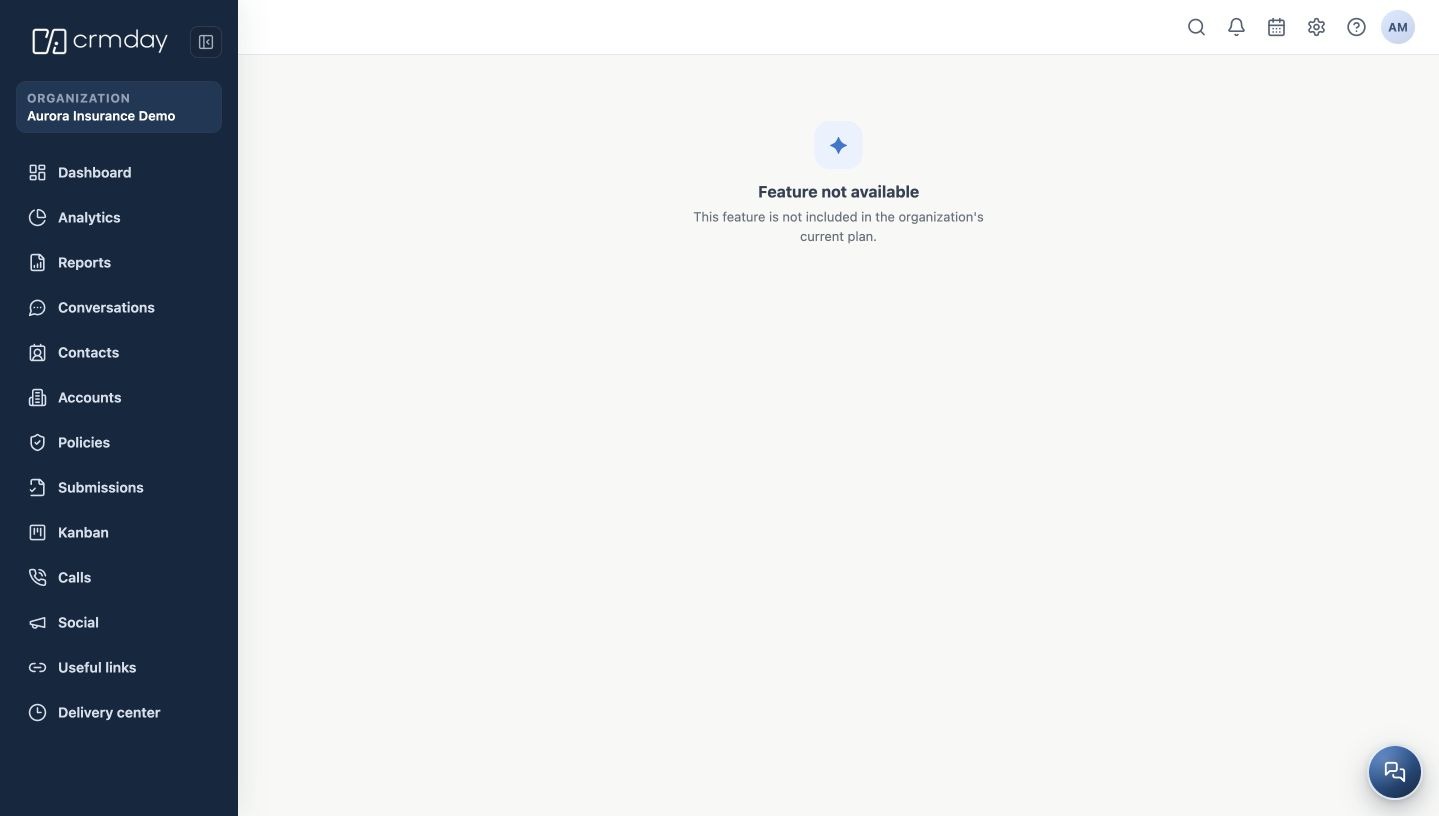
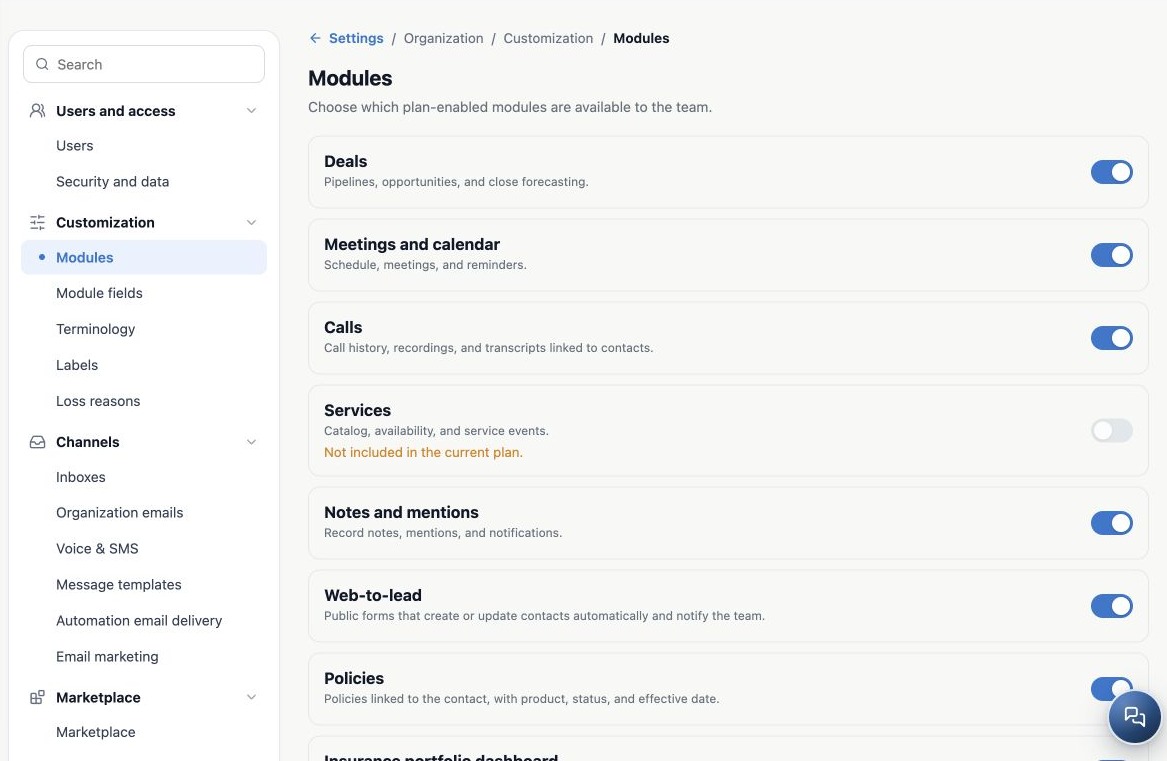
| Not included in the current plan | The resource was not granted; its switch cannot enable it. |
| An available module switched off | An administrator can enable it after reviewing the impact. |
| An unavailable resource when opening a link | Check subscription, activation and organization before retrying a bookmark. |
| Module enabled but a record is missing | Check user permissions, filters and record Owner. |
| No catalog entry | Some resources have no switch; check the name, organization profile and settings area. |
Check in this order
- Confirm the selected organization and the administrator’s role.
- Open Modules and read the resource name, description and state.
- If available but off, evaluate the impact and enable it.
- Leave and reopen the screen to confirm persistence.
- Refresh the affected user’s page and use the current navigation path.
- Check permissions and module data, plus external services used by the workflow.
If the list is empty or fails to load, refresh and retry. An empty screen does not prove the agency has no modules or that records were deleted. The current screen has no dedicated module search or category filters; use the list and scrolling.
Completion checklist
- Switch state persists after reopening.
- Resource is available or withdrawn as intended.
- Main workflow checked with a representative operational account.
- Existing records checked without unnecessary recreation.
- Related permissions, channels and processes reviewed.
- Team informed about where to work and what changed.
Do not assess an Agent’s experience only through a platform Superadmin support account, which has privileged access. Use a representative account.
When to contact support
Provide the organization, module name, expected and actual state, affected user, time and displayed message. Explain whether the whole team or one person is affected and whether it started after a plan change, activation or organization switch.
If needed, include a screenshot without client personal information. Do not send passwords or tokens. For user-specific diagnostics, continue with Validate rules and maintain everyday security.
Related guides
- Understand Modules and plan your customization
- Connect modules, permissions and other customization settings
- Administrator manual
Updated October 25, 2026.