For Insurance agency Owners and administrators.
Choose the right configuration area
| What you want to do | Where to configure it |
|---|---|
| Make a resource available to the agency | Customization → Modules. |
| Decide who can view or edit a book | Users and access → Security and data. |
| Create fields and organize configurable sections | Customization → Module fields. |
| Change how record types are named | Customization → Terminology. |
| Organize tags or sales reasons | Labels or Loss reasons, when available. |
| Connect a channel or external service | The relevant channel or integration settings. |
Customization groups different settings. Modules does not create new record types, build screens, rename modules or edit their fields. Those customization areas can be covered as separate topics.
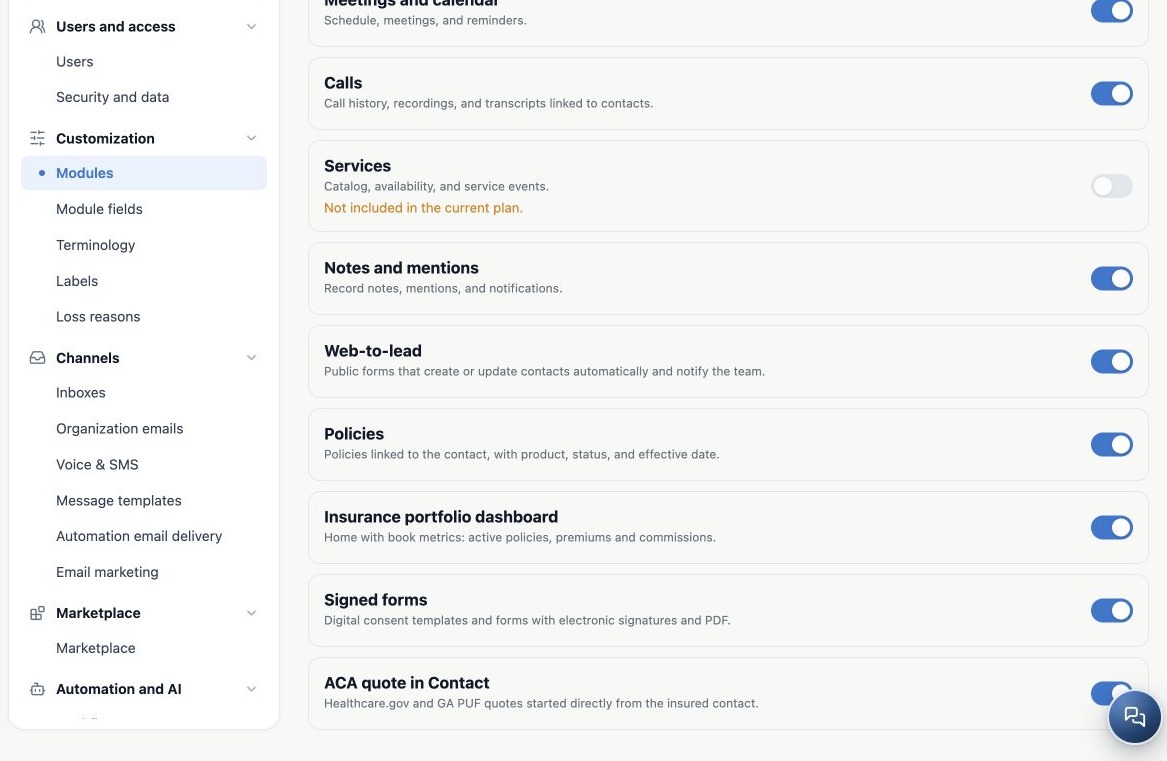
Example: enable Deals without opening every book
Alex enables Deals for the agency. Sam needs his own opportunities; Taylor needs a team view. The organization uses one module switch, while actions and scope are configured through profiles and access policy.
- Enable Deals in Modules.
- Review module defaults and profiles under Security and data.
- Assign profiles and check teams and shares.
- Confirm the effective rule-enforcement mode.
- Test with a representative Agent, including an opportunity they must not access.
See Access models and module defaults. An enabled module with public defaults or a broad profile may expose more records than expected.
Example: prepare document follow-up
The agency uses policies, tasks and notes to request documents. The administrator checks required modules, staff profiles and the forms and channels involved. Enabling a resource does not automatically create a Kanban, message template or sending rule.
When a workflow involves several resources, check every step. A contact can be accessible while its policy, a note or a sending action depends on another condition. Validate the complete workflow, not just a menu button.
Validate in your team’s languages
The user’s language guides the interface. Custom catalog names and descriptions may remain as entered. If a description stays in another language, ask support to review the catalog. Do not create separate module configurations just because people use different languages: they share the organization’s configuration.
Ask a Portuguese-, English- or Spanish-speaking colleague to locate the resource in their language, confirm availability and perform the necessary action. Use the appropriate configuration for custom names, fields and terminology. Changing language does not change permissions or subscription rights.
Related guides
- Understand Modules and plan your customization
- Disable and re-enable modules without losing continuity
- Troubleshoot unavailable modules and validate changes
- Administrator manual
Updated October 25, 2026.