For Insurance agency Owners and administrators.
Edit a record label
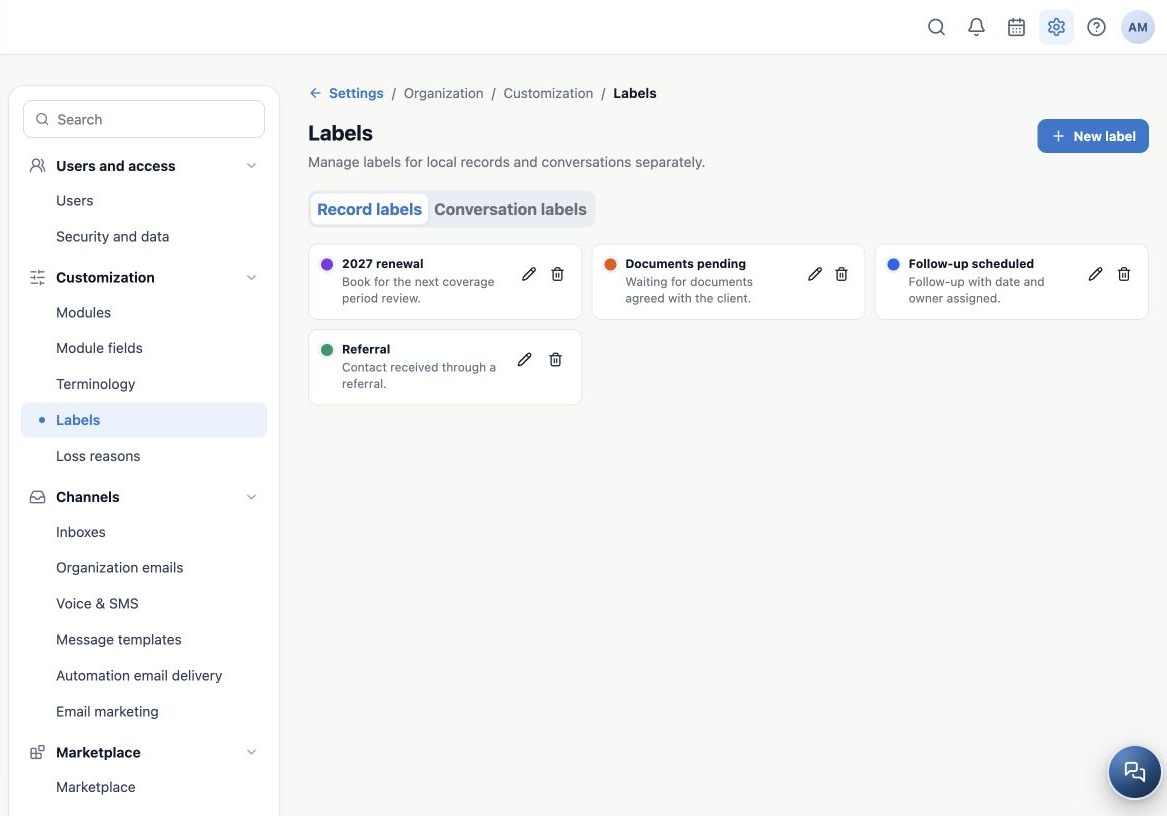
- Open Record labels and click the label’s pencil.
- Adjust the name, description or color. Before renaming, coordinate with people using filters, reports or automations.
- Save, reopen settings and check sample records where the label was already assigned.
Renaming changes the shared catalog, rather than just one client. In local records covered by the rename process, such as Contacts, Tasks and Deals, assignments follow the new title. Validate each module and integration your agency uses; do not assume saved message text, old filters or external systems are rewritten.
Archive and restore without deleting history
- On the record tab, click Archive label on an item that should no longer be offered for new selections.
- Confirm the label name in the archive prompt.
- Check the Archived marker. Archiving alone does not delete previous assignments.
- To offer it again, click Restore label. Refresh or reopen usage screens and check the selector.
To remove a label from one Task, edit that Task’s selection. To retire a classification across the agency, archive the catalog item. Records with an archived label can still show its name; styling may become neutral when its color is absent from the active catalog.
Avoid duplicates and test actual usage
- Use one concept per label. Avoid Pending, Waiting and Documents pending with the same meaning.
- Use the description to explain when to apply and remove it. Do not rely only on color.
- Terminology does not translate label names. Agree on a common standard for a multilingual team.
- Review filters and integrations before and after a rename. A label does not create an automation on its own.
- If a label is missing, check the correct tab, archive status, active agency and page refresh.
The record catalog prevents duplicate normalized names, including capitalization and accent variations. Different synonyms can still produce redundant classifications. Review periodically with the team and test assignment on a fictitious record, saving and reopening it before training the rest of the agency.
Related guides
- Plan labels and choose the right catalog
- Create and apply record labels
- Configure conversation labels
- Terminology
- Loss reasons
- Administrator manual
Updated October 25, 2026.