For Insurance agency Owners and administrators.
Choose the conversation catalog
Open Customization → Labels → Conversation labels. Conversations uses this catalog, which can have different names and colors from record labels. Check existing items before creating a variation.
A label such as documents can identify conversations needing the document-review team. It helps find and classify conversations, but does not replace agent assignment, conversation status or a follow-up Task.
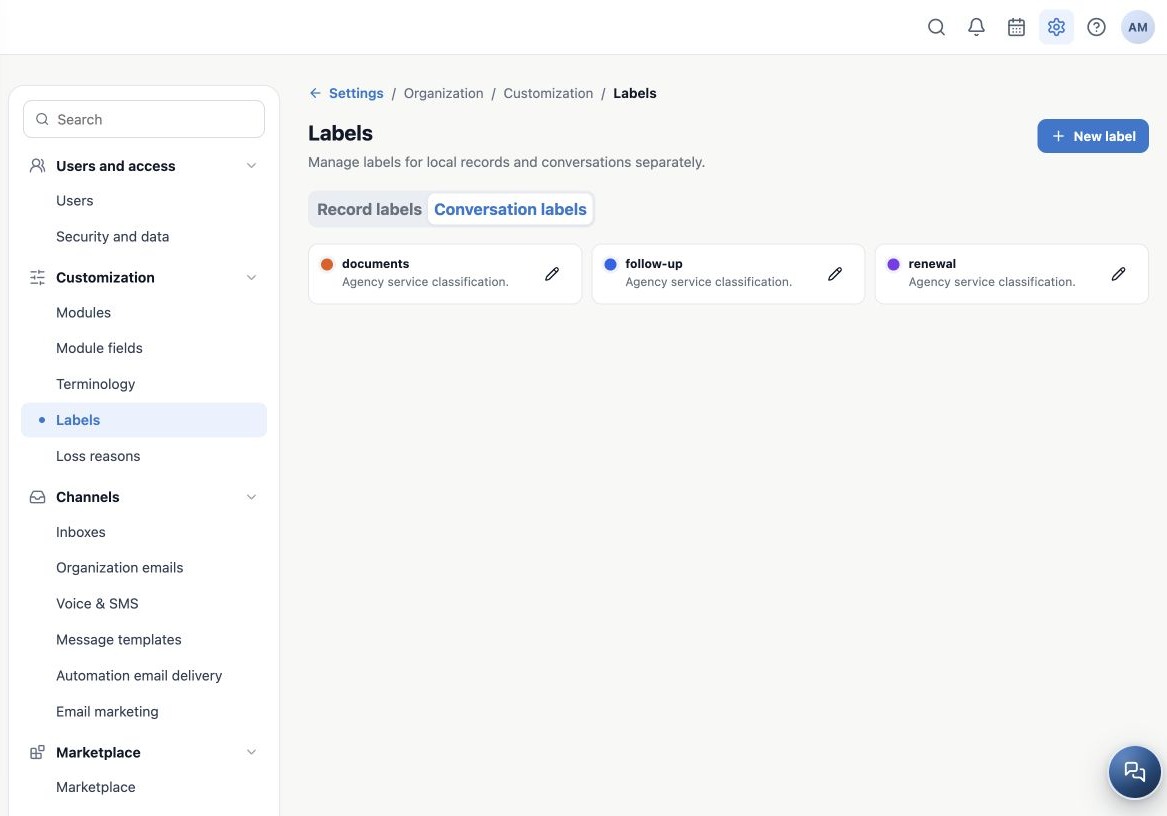
Create the service label
- On the conversation tab, click New label.
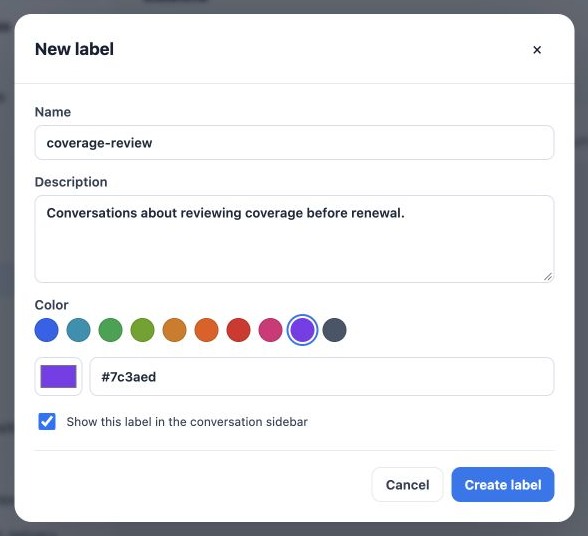
- Choose a stable name such as coverage-review, a usage description and a color.
- To offer it in Conversations navigation, keep Show this label in the conversations sidebar checked.
- Click Create label and verify it in the catalog.
- Open a test conversation and assign it using the label control. Reopen the conversation to verify the result.
The entered name is used literally; there are no three translation inputs as in Terminology. Agree on a naming convention your team understands. Manual examples were entered separately in each demonstration language rather than automatically translated by the product.
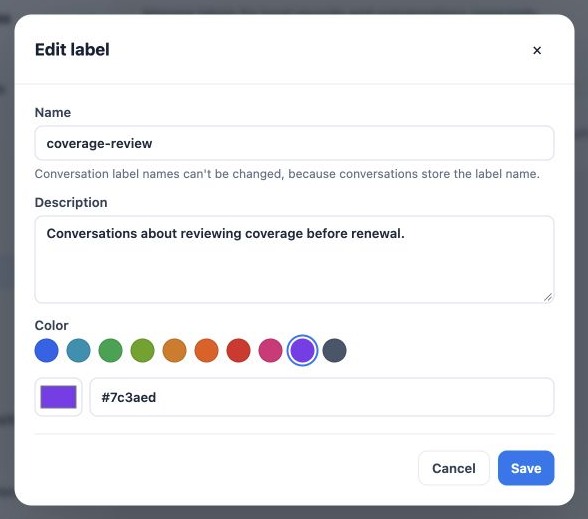
Edit description and color
- Click the label’s pencil on the conversation tab.
- Notice the locked name. Conversations store that name; the editor lets you change description and color.
- Make the changes and click Save. Reopen to check.
This screen does not offer renaming, archiving or restoration for conversation labels. Do not apply the Record labels procedure here. If another name is needed, create a new label, plan reassignment on conversations and review filters and automations using the old name. A new label does not migrate existing assignments.
Related guides
- Plan labels and choose the right catalog
- Create and apply record labels
- Edit, archive and maintain the label catalog
- Terminology
- Loss reasons
- Administrator manual
Updated October 25, 2026.