For Insurance agency Owners and administrators.
Create a record label
- In Labels, select Record labels.
- Check the catalog for duplicates or variations of the same concept.
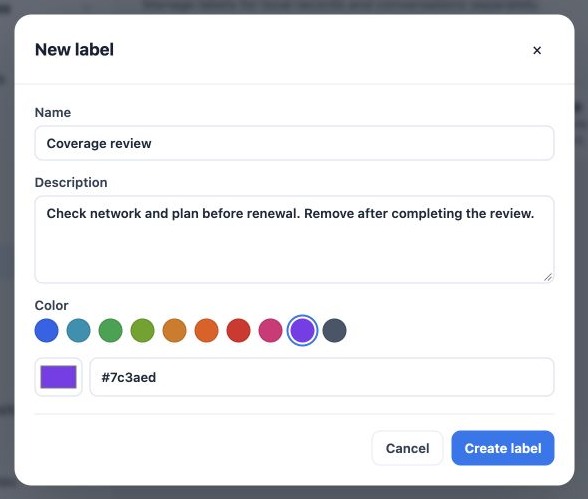
- Click New label.
- Enter a short name such as Coverage review. The limit is 100 characters.
- Describe the rule: “Check network and plan before renewal. Remove after completing the review.” Descriptions allow up to 500 characters.
- Choose a suggested color, use the color selector or enter a valid hexadecimal code such as
#7c3aed. - Click Create label. Reopen settings and verify the name, description and color.
Creating a catalog label does not apply it to every client. It becomes an option; you assign it to the record separately.
Apply, save and check the record
- Open a contact, Task or Deal you can access.
- Edit it or open the record’s Labels action where available.
- Search the selector and choose an existing label. You can select more than one.
- To remove an association, remove that item from the selection; do not archive the catalog just to clear one client.
- Save the record or click Save labels, depending on the dialog. Reopen and verify the associations.
On the Task Kanban, assigned labels appear on cards using active catalog colors. The label identifies the topic while the stage shows progress. For example, a Task in Waiting for client can carry Documents pending. Once documents arrive, update the Task and remove the label according to your team’s rule.
Use labels to find groups
In lists with record filters, open the filter, choose Labels and select the appropriate condition and options. For example, combine a document label with owner and due date. Apply and check the total before a bulk update or message. Filtering does not grant access to records the user cannot view.
Inline creation may appear in a selector for convenience, but creating or managing the catalog requires an Owner or administrator. Users without that permission should select an existing option or request a new one. Do not put SSNs, diagnoses, phone numbers or other personal data in labels; these are shared classifications.
Related guides
- Plan labels and choose the right catalog
- Configure conversation labels
- Edit, archive and maintain the label catalog
- Terminology
- Loss reasons
- Administrator manual
Updated October 25, 2026.