For Insurance agency Owners and administrators.
When to use an API inbox
Use API when a portal, application or custom channel must exchange messages with your team in Conversations. For example, an agency portal forwards a document request and receives the agent’s reply. The inbox organizes the interaction; communication requires an implemented integration.
Assign a technical owner for incoming messages and returned replies. Define inbox name, agency, sender identification and event destination. This channel does not install ready-made chat, connect a number or automatically create integration credentials. Use the dedicated flow for native WhatsApp or SMS.
Register the API inbox
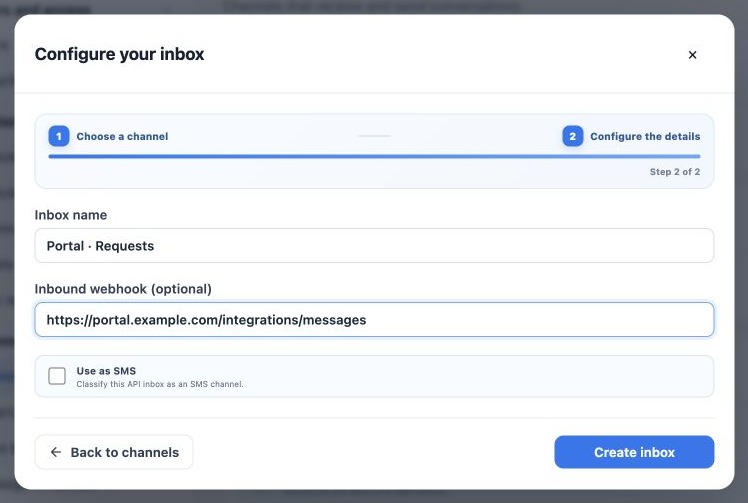
- Open Administration → Settings → Channels → Inboxes → New inbox → API.
- Enter a clear name such as Portal · Requests.
- In Inbound webhook (optional), enter only the URL supplied by the technical owner. The example is fictitious and must not be copied.
- Leave Use as SMS unchecked for a portal or generic integration.
- Click Create inbox and verify the API card.
- Click Team, select agents and save. Settings can rename that same inbox.
The optional field is not for the CRM home URL or a password. If the integration destination is undefined, leave it empty and arrange implementation with its technical owner. No webhook may be suitable for an internal test, but does not prove replies reach the external system.
Understand the webhook and both directions
| Part | Responsibility |
|---|---|
| Integration input | The external system sends or imports messages to the correct conversation and contact. |
| Events and replies | The configured endpoint receives channel events; the integrator determines which should generate output. |
| External delivery | The integrator sends replies to the portal or channel and records outcomes. |
Despite the form label Inbound webhook, the address is the integration endpoint receiving inbox events. It is not a CRMDAY-generated URL for sending messages into the CRM. The technical owner must confirm direction, events, authentication and reply handling before activation.
Require incoming messages not to be echoed as replies, internal notes not to reach clients and repeated events not to create duplicate deliveries. Credentials and endpoint validation belong to implementation, not an inbox name. Registration alone does not guarantee these behaviors.
Use SMS classification only when applicable
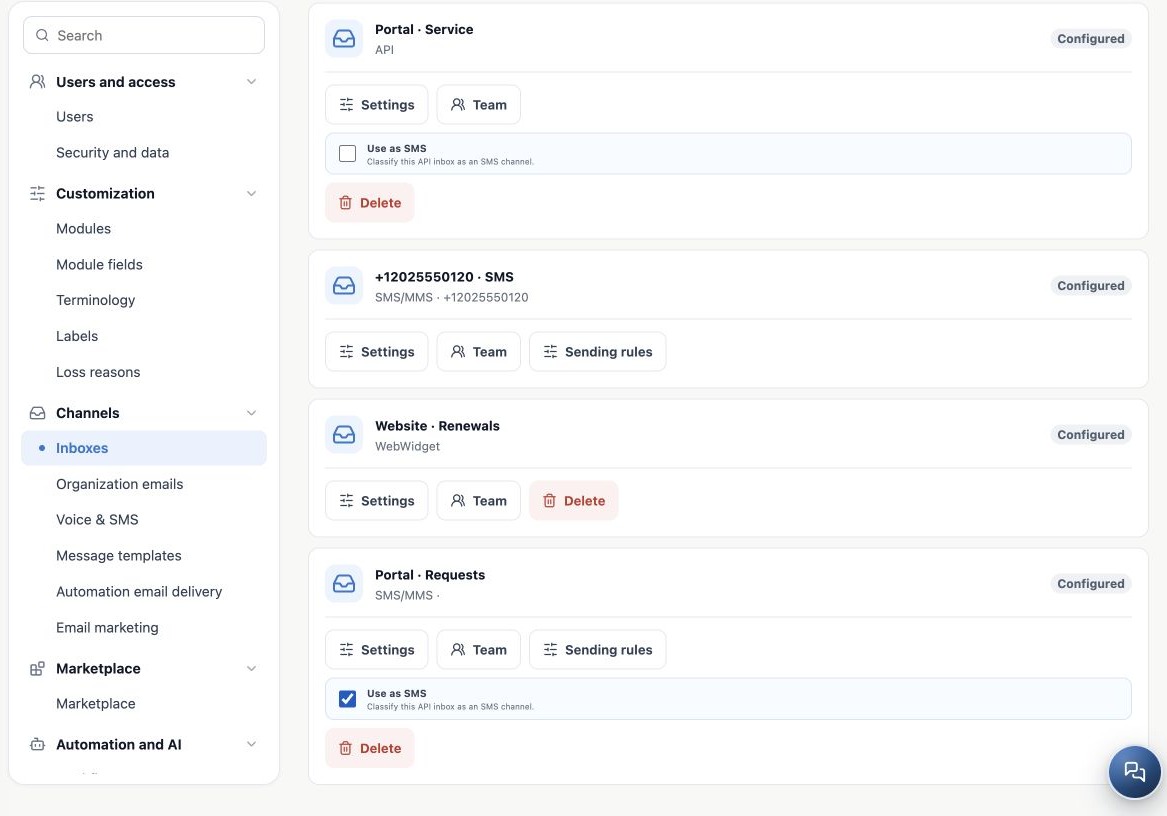
Owners and administrators can select Use as SMS on API inboxes that allow configuration. Classification presents the inbox as SMS and allows its selection in flows requiring that channel. Set it during creation or on an existing card. To reverse a permitted manual classification, uncheck it and verify the return to API.
Select it only after a real SMS integration is prepared and verified. Classification does not connect a carrier, purchase a number, approve registration or turn a generic webhook into SMS service. Phone-managed inboxes have their own classification and may not show this control. The image classifies a portal solely to demonstrate the visual effect, not real SMS.
Verify before releasing the integration
- Ask the integrator for a fictitious message with a stable sender identifier.
- Verify inbox, contact and content in Conversations.
- Reply in the CRM and obtain confirmation in the external portal or app.
- Add an internal note and confirm it is not delivered to the client.
- Have the technical owner repeat an event in a controlled test and check duplicates.
- Test an authorized agent and record who monitors errors and endpoint availability.
If input works but replies fail, investigate the webhook and external forwarding. If no message arrives, check integration output, agency and inbox. Configured indicates registration, not endpoint health. Before resending an uncertain message, verify whether it arrived already. Do not delete the inbox to change a URL: arrange maintenance with the technical owner and preserve history.
Related guides
- Understand inboxes and choose your channel
- Connect WhatsApp using a QR code
- Configure bulk-message limits and schedules
- Prepare the official WhatsApp Meta API connection
- Complete Meta signup: an illustrated walkthrough
- Verify Meta API and prepare templates
- Manage team, connection and authentication changes
- Set up an SMS inbox
- Connect Instagram for messaging support
- Add website chat with WebWidget
- Administrator manual
Updated October 25, 2026.