For Insurance agency Owners and administrators.
Guides in this chapter
- Choose among the available field types
- Create fields and configure select options
- Organize fields into record sections
- Edit, hide and deactivate fields safely
- Fill fields on records and use filters
- Validate fields, languages and integrations
Open Module fields
Go to Administration → Settings → Customization → Module fields. Organization Owners and administrators can configure additional data in available modules. Choose Contacts, Accounts, Tasks / Kanban, Deals or Policies. The available choices depend on the resources in your access.
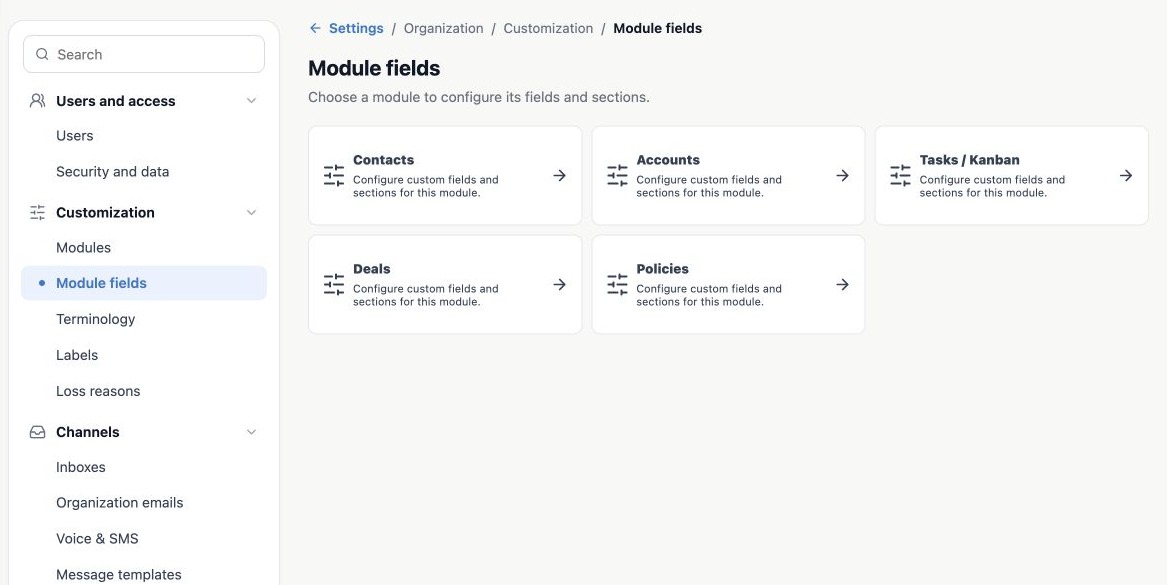
Decide where the information belongs
| Module | Insurance agency example |
|---|---|
| Contacts | Best time to call or the person’s service preferences. |
| Accounts | Classification of a company served by the agency. |
| Tasks / Kanban | Document status and next follow-up date for an activity. |
| Deals | An additional sales detail about an opportunity. |
| Policies | An additional operational control for that policy. |
A Task field belongs to the activity, not its linked contact. Using the same name in two modules does not synchronize values automatically. If the information describes the person independently of a sale, consider Contacts; if it describes specific coverage, consider Policies.
Check existing fields first
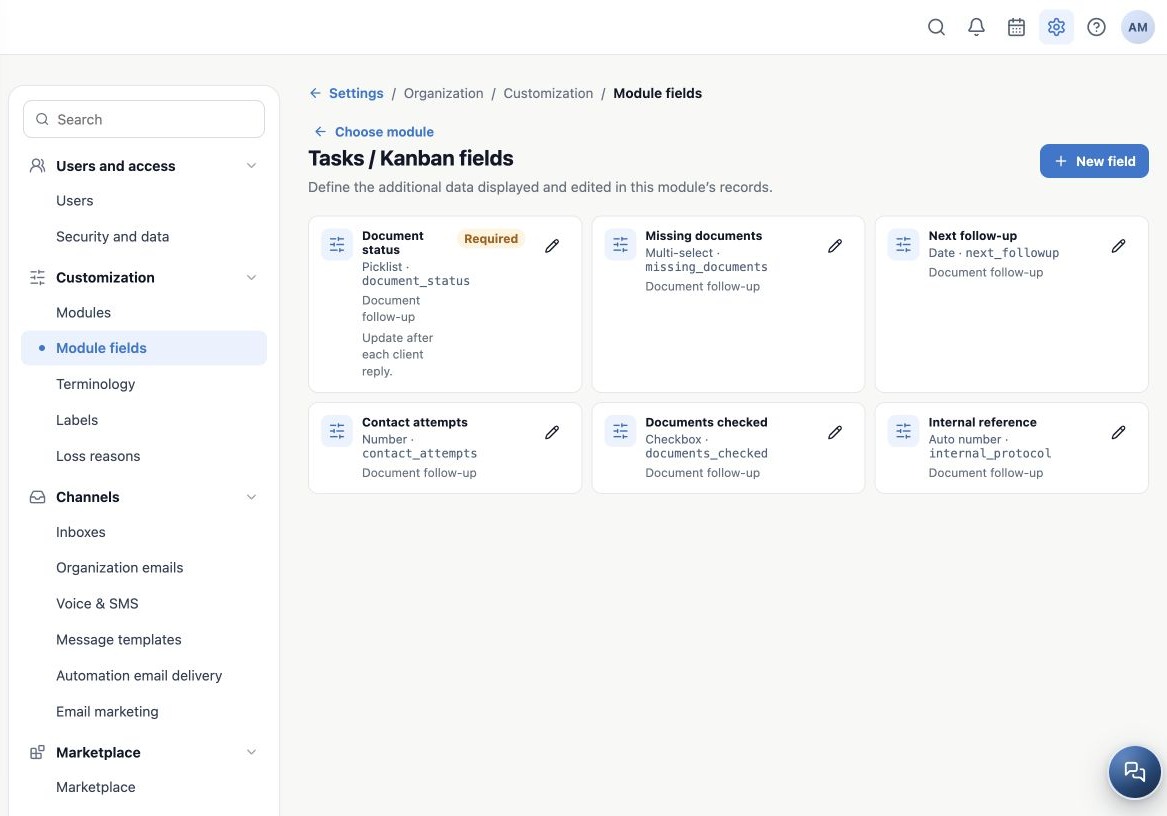
Each catalog card shows the label, type, API name, section and indicators such as Required and Hidden. Review existing fields before adding another. The API name identifies the field for filters and integrations; the label is what staff see.
Avoid duplicating structured information such as addresses, Owner, NPN, policy amounts or imported HealthSherpa fields. Those have their own locations and rules. Additional fields do not replace related records, attachments, member lists or dedicated sensitive-data controls.
Define the field before creating it
- Write its purpose and who will fill it in.
- Choose the module and appropriate type.
- Define a stable API name, label, section and help description.
- Agree on consistent list options with the team.
- Review requirements, access and impact on existing records.
- Test with fictitious records and reopen after saving.
In the examples, fictitious Aurora agency tracks Task documents with status, missing documents, a date and an internal reference. Configuration applies to the module in the organization, not to one user or one Kanban only.
Related guides
- Choose among the available field types
- Validate fields, languages and integrations
- Administrator manual
Updated October 25, 2026.