For Insurance agency Owners and administrators.
Separate record access from field access
A user may be allowed to open a contact without being able to edit a particular field. Under Security and data → Profiles and fields → Configure, Field security adds that control. Unlisted fields retain full access; restrictions must be explicit.
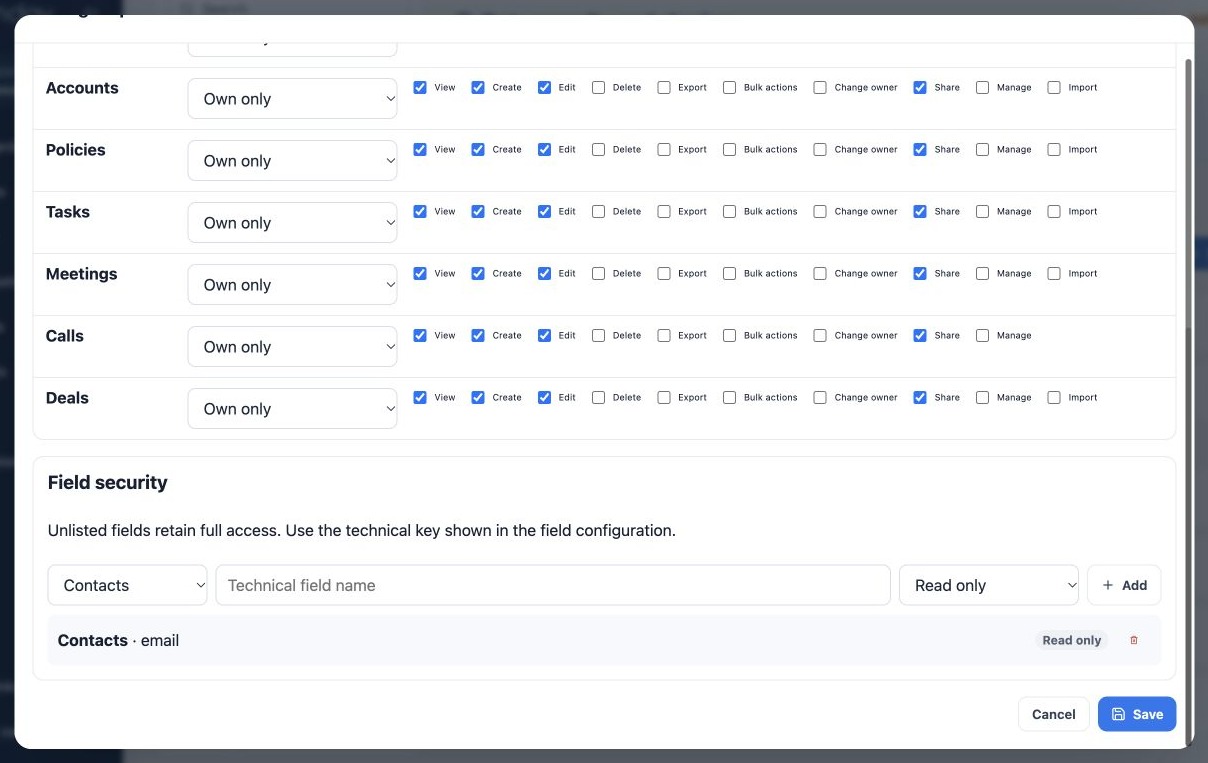
Configure a field rule
- Select the module.
- Enter the exact technical field name, checking its configuration. Do not enter only its displayed label.
- Choose Hidden, Masked, Read-only or Full access.
- Click Add and check the rule in the list.
- Click Save, reopen the profile and test the record with the assigned user.
| Level | Purpose |
|---|---|
| Hidden | Do not provide the field value to this access. |
| Masked | Display a protected representation instead of the full value. |
| Read-only | Allow reading but prevent editing. |
| Full access | Allow field access according to other permissions. |
Example: make the standard Contacts field email read-only for document follow-up staff. For custom fields, use the key confirmed in your environment. To remove a rule, use its trash icon and save; the field returns to unconfigured behavior, subject to other profiles.
Control SSN reveal
At the top of the profile, Sensitive data offers Allow viewing full sensitive data (SSN). Enable it only for people who need to reveal the number. Organization Owners and administrators already have this capability; platform Superadmin support uses an audited privileged context.
SSN is initially masked. Revealing it is an explicit action recorded in audit history. Contact editing permission does not imply SSN reveal: a person may enter or replace a value without being allowed to reveal the complete number afterward. The specific SSN control also applies in compatibility and validation modes.
SSN is excluded from ordinary contact exports and contact synchronization with the conversation service. Do not copy it into notes, ordinary fields, email or attachments to bypass protection. General field security does not replace the specific reveal control.
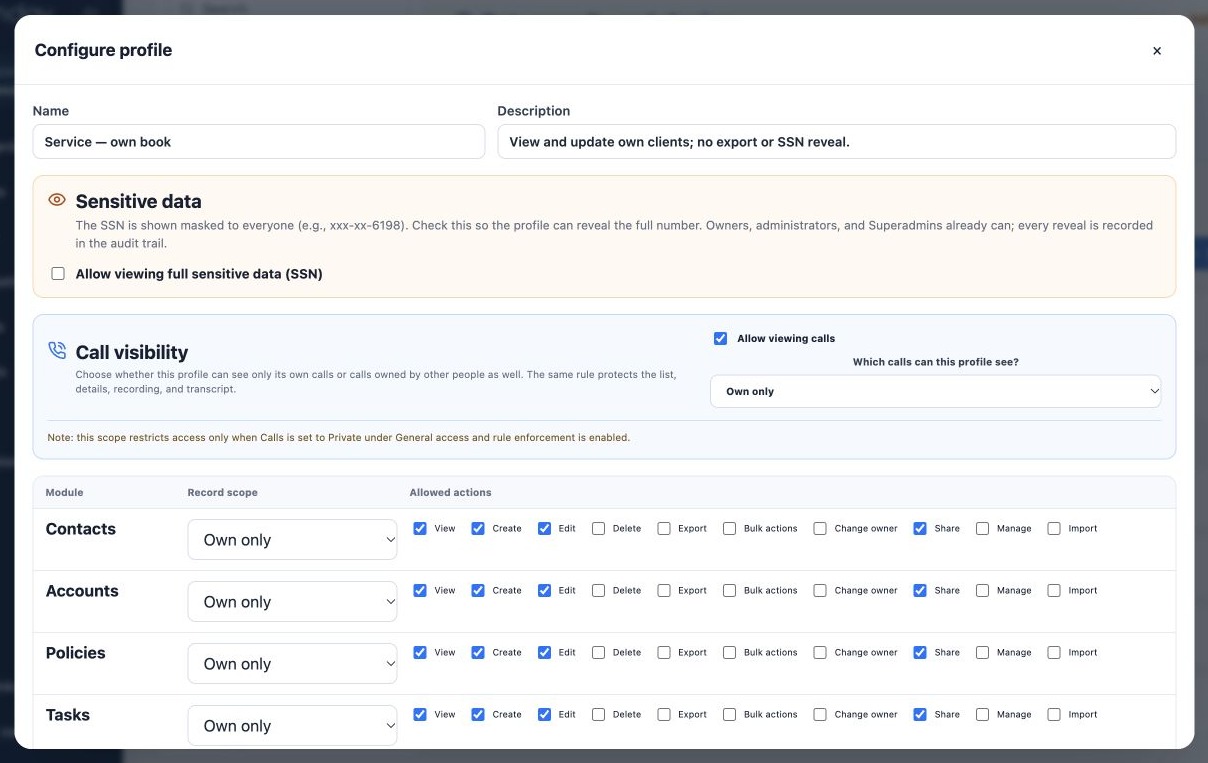
Restrict calls, recordings and transcripts
- In the same profile, find Call visibility.
- Set Allow viewing calls.
- Choose Own only, Team, Team and subordinates, Shared only or All.
- In General access, ensure Calls is Private when you intend profiles to restrict visibility.
- Confirm enforcement is active, then test the list, details, recording and transcript.
A restricted Calls scope does not limit access while the module is public or rules are only in compatibility/validation. Review every assigned profile because a broader profile may still grant access.
Related guides
- Plan users and access for your agency
- Create profiles and define actions and record scopes
- Organize teams and service hierarchy
- Validate rules and maintain everyday security
- Administrator manual
Updated October 25, 2026.